

The remote VPN server you are connecting to will become your network gateway by default once the VPN connection is established, meaning that from this point on until the connection is disconnected, all your Internet traffic will be re-routed to the VPN server first.
To change this behavior so that you use the local internet connection to access the internet and only access remote server when needed, please follow the following steps.
1. Open Network Connections window by clicking Start and typing in NCPA.CPL
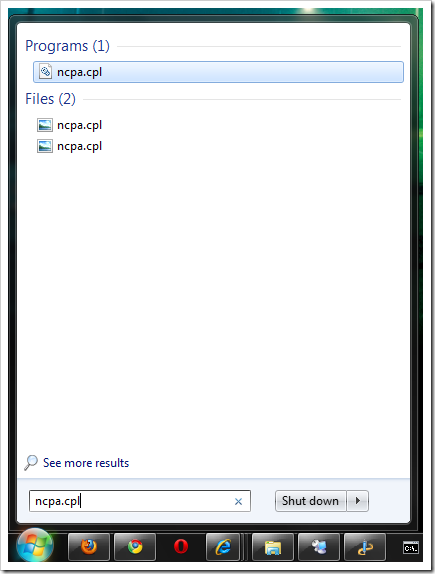
2. Right-click on your VPN connection and choose Properties.
3. Go to the Networking tab, highlight Internet Connection Version 4, and click Properties tab.
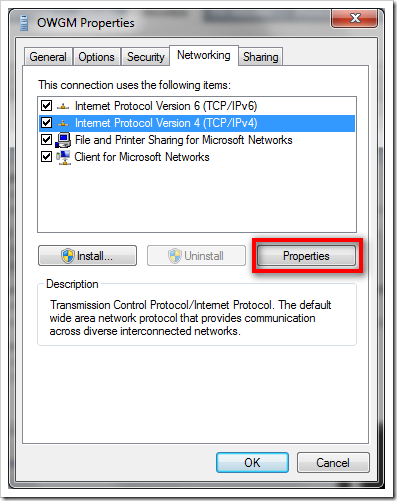
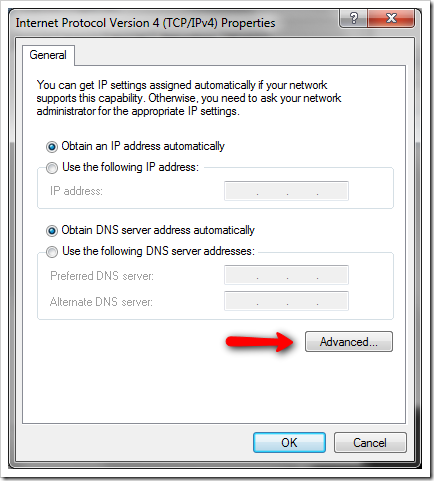
4. Click on Advanced tab.
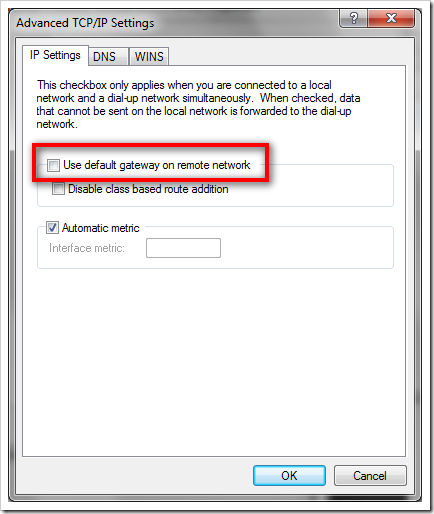
5. In IP Settings tab, uncheck the option
Use Default Gateway On Remote Network
6. Click a few OKs, and you are all set.
Thanks to Matt who commented on our VPN Setup Tutorial about this and I think it’s worth a post emphasizing the point.
Note that,
- This only applies to VPN setups that use Windows 7 default VPN connection and Windows Server RRAS as remote VPN server. This will not work exactly the same on the different configuration, though, the concept still applies.
- This trick does not only work in Windows 7 but also in Vista, XP as well.
You should be aware that doing this effectively creates a bridge between your corporate network and the internet. If you don’t have an adequate firewall on you home connection you could be exposing your corporate network to attacks.
My Windows 7 has a different option:
IP address: DHCP Enabled (and i can’t disable it, because the edit button is grey)
Default gateways: Nothing in there only a black [Add…]
I still get an error message:
“Connection failed with error 868; the remote connection was not made because the name of the remote access server did not resolve.”
what should I do now?
First, are you sure the VPN connection is connected and live?
Second, if so, please see if you can connect through IP address directly to the server.
Cheers.
When I did this I got internet as promised, but then I could not connect remote desktop to work anymore. I also could not connect to mail server (exchange) anymore. So i dont se the benefits if this is normal. (im on win 7, server at work is win server 2003 and R3). Does this depend on type of vnp and/or router at server site?
Thank you soo much. I was looking this resolution. You saved me lot. Thanks again
just need to add a route to access your remote environment
Thank you
But how I can Add root
My remote ip is
192.168.2.1
Worked great on my windows 10.