

[update on Sept. 4, 2012] To change the default user profile location in Windows 8, check out this post, which works much better.
The default location of user profile in Windows 7 is still the same as Vista, in c:\users folder, which I often find it seems quite dumb putting user profiles in the same partition as the system, especially when I store most of my day-to-day files in my user profile, rather than another folder in another partition. So my preference of the first step after installing the OS on my own computer is always to change the default location to another partition before I actually start setting up my profile.
However, here is what I’ve done normally.
Warning before you attempt to make any change in the registry make sure you have the original registry backed up. This can save your mess if you did something wrong.
1. Copy the original Default profile folder in C:\users to the new location. (by default this “Default” directory is hidden, you need to go Tools > Folder Options > View (tab) > Show Hidden files, folders, and drivers.)
2. Copy the original Public profile folder in C:\users to the new location. (let’s say D:\ drive)
3. Open Registry Editor by type Regedit from the command line, and navigate to HKEY_LOCAL_MACHINE\SOFTWARE\MICROSOFT\WINDOWS NT\CurrentVersion\ProfileList.
4. Change the value of the Default, Public, Profile Directory keys to the new location accordingly.
5. Log off. From this point on, any new user logged in to this computer will have a new user profile that’s located in the new location.
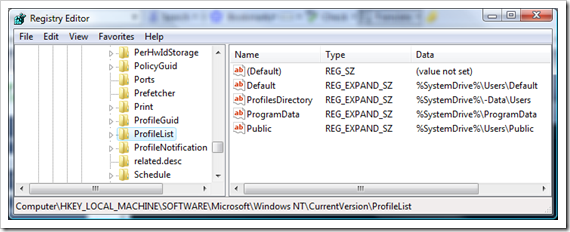
Before changing the registry.
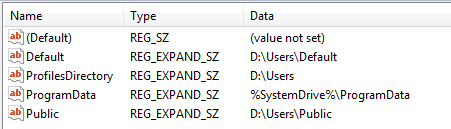
After changing the registry.(as using D:\ drive for example)
6. When you logged into your new account (make sure with the new profile location) you can now delete your old account prior to the change.
A few notes:
- It applies to Windows Vista as well.
- There will be a lot more steps to move a user profile that’s already been generated. So highly recommend that doing so as early as you can. A brand new fresh profile is always better.
- see this post when you failed to upgrade due to the change of the user profile location
- If you’ve done everything and see an error message in your user profile directory saying “Some library features are unavailable due to unsupported library locations. Click here to learn more …”
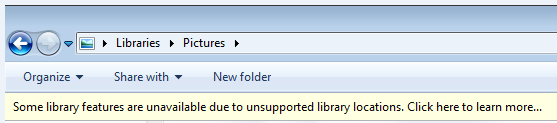
This is an indication that you didn’t do the step correctly. Check if you have the miss spell the directory name etc. And also make sure you have logged out in order to take effect.
nice tip, I’ve always dislike the idea of having user documents on the main partition, make it also running out space so quick
ps. i think we have some problem with the comments I can’t see what I am typing here need to highlight it to see what ‘am writing
@Duncan, thanks. It’s true that considering the price and size of SSD having 2 of them in the middle-high laptop should be standard. And I believe that Windows 8 will make the change to reflect the trend.
Hi people
I have done the steps explained above. All works ok apart from various little problems that I have notice every now and then. For example, if I go to Devices and Printers, the page stays blank and seems to continue to load forever. My programs also have a tendancy to become more unstable and crash more often.
Have anyone else noticed things like these ?
The following worked for me. Your procedure did not work without my step 2.
Assume current profile is in C:UsersStudent and you want to move it to D:UsersStudent
Using registry:
http://www.windows7hacker.com/index.php/2009/05/how-to-change-user-profile-default-location-in-windows-7/
1. Using windows explorer (with “view hidden files”) copy all files from C:UsersStudent to D:UsersStudent
or if it is new, just leave d:UsersStudent empty
2. Click “start” button, type regedit. In:
HKEY_LOCAL_MACHINESOFTWAREMicrosoftWindows NTCurrentVersionProfileList
right-click ProfilesDirectory and select “Modify”. Change %SystemDrive%Users to D:Users
3. Choose subfolder(s) of ProfileList having “Student” in ProfileImagePath.
(e.g. in my case it is
S-1-5-21-1432653313-2508134619-3354344128-1000
S-1-5-21-1432653313-2508134619-3354344128-1003.bak
S-1-5-21-1432653313-2508134619-3354344128-1007)
Right-click ProfileImagePath, select Modify. change to D:UsersStudent
Amazing… it did work.. after logging off it logged me in with a temp account (maybe I had done something wrong).. so I copied again the whole Users directory to the new location I had set in the registry, and logging off and in again did the trick ^_^
Thanks
If I currently have the users profiles on the default (c:users***) and I do a Migration Wizard backup of c:usersXYZUser and then do as you state above – a clean install, copy the default and public profiles to d:users etc create a new account with the same name as originally (eg, XYZUser) and then resotre the migration wizard willl all the old info be restored to the new XYZUser location on D;users???
Yes, that WILL work. I have tested it. On my computer, I had already been running “most” of my profile on a separate partition. (ie: Contacts, Desktop, Downloads, My Documents, My Music, etc…) However, I really wanted my ENTIRE profile, including AppData and all those weird links, on the separate partition. I had not been 100% successful in manually moving AppData and all those weird links in the past. I then discovered this tutorial, but didn't really want to go through customizing everything all over again.
– So per your idea, I used the Migration Wizard to back up my profile. I then enabled the Administrator account and logged into it. (Yes, that ended up creating the Admin profile in the Windows 7 partition, but I didn't care.)
– Then I deleted my profile, including all its files. (I previously backed up the entire drive to an external drive just in case I hosed everything.)
– I followed this tutorial perfectly, but I had some issues with it. From the Administrator account, I added a user (trying to recreate my profile). However, I could not successfully log into the new user. I kept getting an error about “The User Profile Service service failed the logon. User profile cannot be loaded.” or something.
– Okay, fine. Let's simplify the hell out of this. I went back to the Admin account and deleted the new user account I created earlier, including files. (Not that there were any files yet, as the profile folder for the new user had never even been created in either the old or new location. Makes sense being that it never could log on.)
– Next, I changed the registry keys back to their defaults… except for one. I left the ProfileDirectory key changed to point to the other partition.
– Rebooted, and logged back into the Admin account. Added the new user account. Logged out of Admin and into the new user account. All good. EVERTHING for the new profile was just where I wanted it on the other partition.
– Double clicked the huge backup file that Migration Wizard created for me way earlier. I was worried that it would try to restore everything back to their exact original locations (that would be bad) which included some things on the C: drive (AppData and whatnot) and the rest to the D: drive (Desktop, Downloads, My Documents, etc…) It did not. Migration Wizard put everything where it should be IN THE NEW PROFILE LOCATION. It took into account that everything from the old profile should now be placed in the new profile location. Awesome! Custom settings transferred too. I think the only thing I had to fix was what default programs I wanted certain file types to open with. No big deal.
– NOTE: My old profile name and my new profile name was identical. However, Migration Wizard allows you to restore to a different profile name if you want. I think it was under some advanced button or something during the restore.
Hmm, this ended up being much longer than I intended. Anyway, hope all that answer the question and helps someone.
Thanks for laying this out step-by-step. I’m going to migrate all user profiles to a separate partition and hope to avoid needless confusion, errors, and lost time. I’ve poked around a bit and found a few different tutorials. I have two questions for you:
First, did you have any problems with applications that reference the original path for user profile?
Second, I stumbled upon what appears to be a Windows 7 option for this exact operation, but was curious whether anyone else had tried this (and if so with what results).
– Open Computer Management>System Tools>Local Users and Groups>Users>
– Double-click on the user you wish to modify
– Select the Tab “Profile” and provide paths for profile and home folder.
Hi,
great post and thanks for it. Done it a while back for someone on Vista to leave him with an image so he could restore his PC to the state I handed it to him and his data would be kept on a different partition.
Followed the instructions as shown by you, just that when i copied the folders from C: to D: I ran the Explorer as Admin.
Now I'm asking myself how I could delete that C:Users folder, after I have created a new Admin account with which I intend to work and having deleted that, let me call it admin-account-created-by-windows-during-installation as I see no need for it any more?
When I try to do so, I'm getting an error message regarding the libraries, those meta-folders. When i double click the admin-account-created-by-windows-during-installation user folder it's empty, still showing a lock on it though.
It tried to become the owner with the according right to do so, not sure what I did there and if it worked but still can't delete it – still that library error message – won't let me remove the whole folder.
The same happening with C:UsersPublic – can't seem to remove that one either.
Any idea what i need to do? I find those user rights dialogs with user groups pretty confusing.
Thanks for your help 🙂
I don't think copying profiles from one drive to another would move everything over ideally. It may still leave things behind in the original folder. I would suggest leaving these folders as they are. Hope they don't bother you too much. At least, they haven't bothered me.
Cheers.
Great tips here guys! I could also use some help. I purchased a 32G SSD which I am going to install Windows 7/64 on. Currently, I do have Win 7/64 installed (along with my profiles and apps) on drive C (325G). Drive D (500G) holds games and drive E (1TB), movies. What I want to do is just have the essential Windows files on the SSD and keep everything else the same. Now, I understand how to move the new OS install profile files but how do I “get rid of” the original OS install? Also, how do I know WHICH files I need to keep on the 32G OS SDD and which ones to move to my (will be now) D drive to maximize performance and space? I think you understand what I am asking here? Thanks!
I dont think ur instructions are very clear after all, am I supposed to create a new folder in the new directory called User, and then copy the Default folder and Public Folders to it?
Or am I to copy the User folder on the C: drive to the new location on the other drive?
Please let me know. Thanks
Hi
thanx for this nice information. I have one concern, can I have the profiles in D drive where D is protected by bitlock encryption?
Regards,
Ageel
When I use this method, I get an error when I set up a new user and then try to log into that new user. It says that it cannot access the new user's profile location, that it might be on another network etc. and instead of getting a “normal” desktop, it is black. I look in the users directory and there is no folder created for the new user. I even tried resetting the permissions on the new users folder ('e:users') to match those for the c:users folder (and subfolders), but this didn't help either.
This did work for me on W7 RC2, but I am trying this on W7 RTM, and it isn't working. Any thoughts?
Wanted to do this just to have my user profile and more importantly the appdata directory on my mechanical 1.5tb drive rather than my small ssd drive. After installing win 7, changed just the 'profilesdirectory' setting from the default to d:users. Created a new account. Logged into it and then changed the registry setting back to default. Then started to install programs.
Then ran into an issue that I did not have before when running the with my user profile on the c: drive in win 7. That is that some programs that worked, now complain that they cannot write to the HDD. The two main offenders so far being speedfan and COD MW2. Speedfan gives errors after it's detection run, saying it cannot write to various files. COD says 'Modern warefare 2could not write a file. The hard drive is probably full'. But if I run them both as administrator or change the permissions of their directories in Program Files (x86) to allow users write access no more error messages.
Also to test further I created another account using the default registry settings, so put's the account in the c:users dir. When I log into this account I no longer have to mess around with running as admin or changing permissions to get these to programs to work. They work in the default non admin, user mode. Am not desperate to install any more programs while this issue exists.
Any idea's?
is this safe with junction folders?
Thanks for the tip.
Additionally I'd recommend using “xcopy source /k/r/e/i/s/c/h” to do the copies instead of using the windows GUI. The /o option also copies NTFS-rights from one partition to another. A copy from the GUI won't do this. Without that you can run into troubles; i.e. a normal user would be able to delete links from the all users/public desktop allthough that should'nt be allowed.
Darren,
You probably figured this out by now – but if you accidentally change “ProgramData” as well, then you'll have hangup you observed saw. I just did the same thing. In addition, all the applications in the start menu went missing. And you didn't see any pics available when you created the user.
All fixed now. But I created my new user with that mistake – going to kill and recreate the user anew just in case!
I just tried this fix on Windows 7 Professional 64 Bit and it did not work. I changed the registry entries as descrobed above (and checked / rechecked to be sure I did it correctly). I then created a new user, but when I tried to log in as this new user, the login failed with the following error: “The User Profile Service service failed the logon. User profile cannot be loaded.”
Anybody have any suggestions or thoughts?
I have a new Windows 7 system and there is no possibility this will work. Even though I boot up in a different account, when I try to copy the account I want copied from within the User Profiles window, the Copy To button is disabled. Copy it manually is not all possible. There are access denied/permission errors from half the folders and I'm doing that from this account. xcopy also gives the same complaints. Even if I were somehow overcome the permissions bug (it certainly looks like a bug), I can't see how I could copy the registry hives. Even a working Windows doesn't let you copy that.
I've created a new administrator account and it has the same problem.
Thank you so much! I just installed windows 7 on a clean hard drive and followed your simple steps. Now my disk allocations are so much more efficient, organized, and easy to work with. Going into the future, there is nothing like doing it right the first time. Kudos!
I successfully transferred the Users folder to my D Drive in Vista a couple of years ago. I now want to upgrade to Win 7 professional. Will the in-place upgrade option preserve the settings I have in Vista, or over-ride to the default?
Does this work in 64 bit systems?
As many users confirm, the described procedure works. However I have a question.
Being logged in as Administrator I see 5 directories in the C:Users. These are:
Administrator (accessible)
All Users (accessible)
Default (accessible)
Default User (no access)
Public (acessible)
I interpret (taking into account suggestion from Johannes) the statement in step 2 “Copy the original Public profile folder in C:users to the new location. (lets say D: drive)” as:
xcopy C:UsersPublic D:UsersPublic /k/r/e/i/s/c/h/o
But should the first statement be interpreted in the similar way ?
Considering its full text
“Copy the original Default profile folder in C:users to the new location. (by default this “Default” directory is hidden, you need to go Tools > Folder Options > View (tab) > Show Hidden files, folders, and drivers.)”
one can suspect that
xcopy C:UsersDefault D:UsersDefault /k/r/e/i/s/c/h/o
is appropriate. However xcopy puts for each symbolic link in the source directory not a copy of symbolic link but copy of the file linked by it.
C:UsersDefault directory contains many links, thus the copy on D: will be different than original directory on C:
Is this exactly what is needed ?
Alternatively one can add switch /b and use
xcopy C:UsersDefault D:UsersDefault /k/r/e/i/s/c/h/o/b
because
“/B
Copies a Symbolic Link itself instesd of the target of the link. (Windows Vista/Windows 7)”
[http://commandwindows.com/xcopy.htm]
Which of the above is correct ?
And what about “C:UsersDefault User” ?
Is it a copy of C:UsersDefault locked during the session and destroyed after logout, so we can ignore it ?
witrak()
I went through your process, restarted and was locked out. After much head scratching and fiddling in safe mode, I realised it was an ID-10T error. I just failed to read the instructions re Default carefully enough.
So, thanks heaps for the instructions which worked perfectly once I read them properly 😀 So nice to have safe, neat user profiles.
To copy de user folder, try fastcopy.exe
^^
HELP! I have had my windows 7 laptop for about a year–no problem until yesterday. When I booted it up my desktop had changed with about 30 files missing with this message: “you have been logged on with a temporary profile. You cannot access your files, and files created in this profile will be deleted when you log off.” I am the only one who uses this computer and don’t know why this happened. I ran AVG virus scan and found no problem. HP tech help insisted that I just set up a new profile and recover files but when I tried this through Carbonite, everything disappears when I turn the computer off and reboot–just like the message says.
Totally new to this advanced windows stuff, so a few things are stumping me.
Do I need to download a program to move these files, or is it done in command prompt under administrator ? Will this make is so the Documents, etc etc on the start menu point to these folders on the new drive ?
Can you move programdata as well?
Question: Wouldn’t placing your user profile on another partition or drive slow down the system? Referring to folders like AppData, not My Documents: Since Windows is constantly moving files in and out of this folder it seems like it would be very slow to force the system to physically move modified files in and out of a different partition than C:, rather than simply renaming them in-place. Am I wrong about this?
I could also imagine an argument that it might actually make the system faster, like placing the page file at the beginning of another hard drive. But don’t know enough about how Windows 7 treats these files when they’re modified. Anyone know for sure?
Windows is still reading and writing each file once. It is just reading and writing to another drive such as “D” instead for those files.
With two spinning hard drives this could actually speed up the system, as drive C may have more contention.
If drive C is SSD and drive D is spinning, your O/S wait times for disk seek are eliminated, but your profile is on a disk that has still has that.
A tangent:
If memory serves, SSDs have a limited shelf life where a given block has about 10,000 writes (consumer) up to about 100,000 (commercial). So it would be really bad to have a file that that changes by the second on SSD. If you have the money for the SSD, hopefully you’ve also spent money on RAM so you don’t have a busy pagefile (or have put it on drive D).
Creating and deleting lots of files could cause excessive writes to the file table, the temporary files you mention can shorten the life of your SSD a bit but probably not excessively, virtual machines or caching utilities like ReadyBoost may also shorten it.
This and the fact that the SSD that people purchase may not be big enough to contain their documents, music, videos are why people may consider this.
I’m currently reinstalling the laptop that I just bought so that before I put in my account, I can try to get a prompt and update the default key, so that my own profile goes on drive D to begin with.
it might be if it were a different drive and the drive went to sleep and u had to keep waking it up. A different partition is simply a different address so I doubt there would be any time hit at all.
I have been using this for years – the only issue – and I could probably change it – is that i also put all my programs on D: so i must change the drive letter whenever i install a new program. There is a reg key for that, I just never got around to chg it.
Updates and everything work fine.
When u install the OS the default user should be Admin
after install, chg the reg and add ur users.
Admin will be on the C: drive, everyone else on the D: drive.
If u need to reinstall the OS, u can do a clean install w/o affecting ANY user data.
Why this isn’t std install process is a mystery to me.
heres another page that talks about how moving either user profiles directory or program data directory locations to a volume other than the system volume, blocks windows from updates
http://support.microsoft.com/kb/949977
ATTENTION…for those people that want to relocate their existing profile, this MUST be said:
doing Kent’s above steps is *NOT* 100% sufficient!
In HKLMSoftwareMicrosoftWindows NTCurrentVersionProfileList, you *MUST* also check the subkeys linked in!!
(those starting with S-X-Y…)
For instance, I wanted to migrate to E:Users… but it was still C:Users in there even though I had made the change described on top of this page.
Subkeys MUST be modified accordingly. The number of subkeys depends on how many user profiles you have on your system.
What happens if D:users already exist ?
(after reinstalling windows 7.)
I have had some minor problems with some applications not working properly (ie. Netbeans with Maven) after the move, although the application was installed prior to the account move… However it helped to create a symbolic link from C:Usersprofile to new profile location.
I used this command to do that:
mklink /D C:UsersMartin D:Martin
The best way to achive this, is using symlinks … it worked for me:
1. First create the profile you want to use
2. From another administrator account, move the profile folder to another partition.
3. create the symlink in c:Users with the name of the account pointing to the profile location.
mklink c:UsersMario d:Mario
And that’s all, enjoy!
You can also do this while installing Win7.
When it prompts you to input your name and computername, press SHIFT+F10.
A command screen opens up, and type regedit.
Then follow the steps in this guide.
Doing this, you will not make an unneeded user on the C drive.
Congratulations ADMIN on your site was very nice
Excellent soir à tous les participants de ce site web ,
En premier lieu , permettez-moi de vous démontrer ma gratitude pour toutes les formidables connaissances que j’ai trouvées sur cet imposant forum de discussions .
Je ne suis pas convaincue d’être au bon endroit mais je n’en ai pas trouvé de meilleur.
J’habite à Elgin, usa. J’ai 35 ans et j’éduque 6 très gentils enfants qui sont tous âgés entre huit ou 15 années (1 est adopté). J’adore beaucoup les animaux et j’essaie de leur donner les biens qui leur rendent l’existance plus agréable.
Je vous remercie à l’avance pour toutes les super débats à venir et je vous remercie surtout de votre compassion pour mon français moins que parfait: ma langue de naissance est le chinois et j’essaie d’apprendre mais c’est très ardu !
A bientôt
Arthru
Hi there,
I have a question. I don’t know what robocopy is, can I move the default and public profile in Windows Explorer? Or do I need this Robocopy?
Thanks.
Hi all!
I really don´t know how an installer like the Win7´s one do not recognize partition/drive size and suggest where install the users profile folder. Keeping user data at same system partition is not a good policy. Has anyone idea how to do it in Win7 like in WinXP, where is possible to install ‘Documents and Setting’ folder in drive D;, keeping all security?
This procedure DOES NOT WORK and should NOT be used.
Here is a correct approach:
1. Install Windows 7 normally
2. Carefully check letters (C:, D: etc.) to your disk partitions in live Windows
3. Reboot and enter Windows maintenance mode with prompt
4. Recheck allocation of disk partitions. You will see an additional small partition X:; this is OK. Remaining partitions should be the same as in “live” Windows. If and only if they aren’t, reboot again to regular windows and change partition letters to what you have seen in the maintenance mode. Reboot into maintenance mode again.
5. use “robocopy” in cmd window to copy entire content of your C:Users folder to your new partitition(say, D:Users). Remember to use switches forcing recursive copy of all folders and proper copy of all hard links and junctions such as “My Documents” etc.
6. One you have your new Users folder, create a junction between C:Users and D:Users using “mklink” command in cmd window.
7. reboot to Windows normally.
After reboot you will see C:Users and D:users folder but you will notice that this is the same content. C:Users is just a pointer to your user data space on D: drive. Windows accesses it via C:Users and does not even know that it is elsewhere. You will also see that all “special” folders such as My Documents, My Pictures etc. are exactly as in the original install.
Sane procedure may be used for Program Files (86) etc.
The procedure described in the original post above is incorrect since “copy” operations in items 1 and 2 destroy proper structure of Windows user folders.
Why bother moving Default and Public?
If a machine fails, the programs would all need to be re-installed, which recreates most of the data in both the Default and Public folders.
Programs shouldn’t be putting working data in the Default and Public folders. They are more for shared, static information. Most programs should be smart enough to place anything that deals with what a user does into the user’s profile, not into those shared spaces.
I could understand ProgramData getting large, because some silly program may decide to place cache and temp files in there, but Default and Public shouldn’t be taking up much space.
What I would do when I get a fresh computer is to create an admin account, set the new location of the ProfilesDirectory, install apps and updates, and then create the user accounts. All of the new user accounts get placed in the new ProfilesDirectory. I don’t care to move the admin, Default, and Public accounts to the new ProfilesDirectory. That admin account is only used for administrative stuff, it wont be creating the mass amounts of data that the users will create.
Found this site on google, good info Also found another similar way to do it at http://blog.minkatec.com/?p=412
Same registry changes, but no copying of the profile. It uses the registry change to build the new profile, then change it back to stock and symlink c;|users. I also think it is OK to keep the starter user… in case you lose the other drive you can still get in to windows as that user.
thx – I was doing this the hard way – changing the location one folder at a time. It worked until I added many users. This is exactly what I was looking for. I also moved the ProgramData folder. Only issue is, I no longer have or can change the user picture. When I try it does not give me a view of the different pictures.
Any ideas what to do to fix that???
thx
I have done above all steps. Thanks for the nice information.
thanks for instructions, I did everything as it is written.. but then I created new user and now I can’t log on, it says “The User Profile Service failed the logon. User profile cannot be loaded.”
can somebody help me to solve it please?
Hi All, this was really an interesting read and very infomative, however at the end I am now overloaded with different approaches to take and tweats on the origonal post, has anyone taken all the comments into account to publish the ideal way to accomplish this task re-referencing the original article?
Thanks
Pete
Hi there,
Great post, althought i may have done something wrong. I think i did followed all the instructions. Now when I created a new account and I try to log in I am getting a messaging saying “The User Profile Service failed the logon. User profile cannot be loaded.” I can still log in to the systenm with the account I was logged in wne doining the reg chnages but not with any new one. Any idea what I may have done wrong?
Not sure if you were trying it on your existing profile or a new one. If it’s a new one, I would suggest starting over it again. If it’s an existing one, log in as another account that works and has the local admin rights, find it from the ProfileList registry key and try to manually change it to see if it works.
Cheers.
Hi Kent, I’d like some suggestions about this topic (migrating data between partitions). I’ve sent you last Saturday a private mail, to the address you have put at the “About” page of this blog, have you received it? Thanks for any help,
Cleverson
Thanks Kent for answering, I have just sent it again. The subject line is “A Good Partitioning Plan for me under W7/8”.
For some reason, during the copying of the “Users” folder to a new location, the security permissions were not copied exactly to the new location. When that happened, I got an error logging to the new account:
“The User Profile Service service failed the logon. User profile cannot be loaded.”
I didn’t go through all the comments in this post to see if this issue raised to other windows users, but I want to share the solution I had found to resolve this “profile cannot be loaded” issue after changing the default profile locations. This was only tested in Windows 7.
In the “Users” directory of the new location, bring up the security dialog of the folder “Default” and add “Users” to the security permissions and click “Apply”. You will now be able to create new users with default profile.
For more information on how to modify security permissions of a folder/file, do a search in Google and you should see thousands of links that will direct you to a page where you can learn how to deal with file permissions.
I deleted an extra user I had created and never used via the control panel. Months later I realized that all the information I had under my user ID had been duplicated under the deleted user ID. Actually the user ID was never deleted. Now all of my music files exist under two different user ID. But if I delete them from one place I also deleted from the other. Any ideas on how to solve this problem. Thanks,
But, will it work on Windows 8 well? Im searching net and i didnt find any interesting offer.
There is a bunch of incorrect information in these posts. I have been doing this on my systems for years. It works the same way for Vista, W7, & W8. U must get the big picture before u start.
There are 2 reasons I do this. 1st to get all my profiles on a different partition so it is easy to do a clean install of my OS when it breaks. 2nd – to make it much easier to backup my profiles/data. For virus reasons, I also make all users standard users except for the Admin user on the C: drive.
1. On a clean install u must log onto the computer before u can do anything. Do that by setting up an acct called Admin – it will be and remain an admin acct. on the C: drive.
2. either run a reg file or manually change the reg as indicated – I prefer running the reg file.
3. There is no reason to change the DEFAULT location unless u want to change the default profile. Then it makes sense to change the location for the same reason u r doing it for users. Leave the original where it is. Those items r for windows to use in building new users. If u want to setup all users with the same stuff, U could build one user and copy the applicable items to this profile. The next users u create will look the same.
4. If ur system is already defined then u must consider the following:
1st u must create a generic Admin user before u modify the reg as above. Then use that to do everything else.
a. if u want to keep the same user name u must completely delete the current user before u recreate it. That means u need to make a backup of all the profiles first. The part that I don’t remember about doing this is if that file deletion removes the S folders or if it is even necessary.
If u try to create a username and it argues with it or adds something relative to the computer name, then u will have to delete those reg keys relative to the old user profiles first. It definitely will give u trouble if u do not delete the files during the user deletion process. U can browse thru the S keys to determine which user they refer to and delete all but the new Admin user.
b. after they r completely deleted – files and all – recreate one and log on once to it – the user files r not created until the first logon. Set up this user with items u want for each user.
c. log off and log on to the admin acct. If u want to modify the DEFAULT and have moved that also, copy this users’ files to the default profile.
d. create another user and logon to it. Everything should look like the previous user.
e. create the rest of your users.
f. HERE IS THE TRICK – moving all applicable items from the backed up users to the new user profiles. That will normally involve all the MY folders and some key folders in the AppData folder — like IE, Mozilla, and other apps. This is the hard part. If u move the wrong MS stuff u will mess with the configuration. I don’t use many of the features like certificates etc. so I don’t copy any of that stuff.
good luck.
What about this?
1.Official guide not recommends moving Users http://technet.microsoft.com/en-us/library/cc722177(v=ws.10).aspx
2. http://www.zdnet.com/dont-move-your-windows-user-profiles-folder-to-another-drive-7000022142/
I think it’s totally fine on Windows7. But to be honest with you, I am not sure about 8.1, though it works on 8.
Hi Kent, I´m using this method changing only the key: Profile Directory do D:. It works fine with Windows 7 32bits, but some machines with Windows 7 64 bits, making corruption data on drive D: (like disk error, run chkdsk, like Hard Disk defects ). Do You have any idea to solve this? thanks in advance.