

Windows update errors are not uncommon. You usually get them during an update or upgrade, and the Windows 11 0xC007000D is one such error many people have encountered.
This specific error is often a sign of system file corruption or malware infection, and in this guide, we walk you through all possible ways to fix it. Let us get started.
1. Run the Windows Update Troubleshooter
Running the Windows Update troubleshooter is a good starting point for all update errors. This is because the troubleshooter does a deep scan of the computer to detect and fix possible causes of all update errors.
1. Open the Settings app by pressing Windows + I.
2. Click the System tab on the left, and on the right, click Troubleshoot.
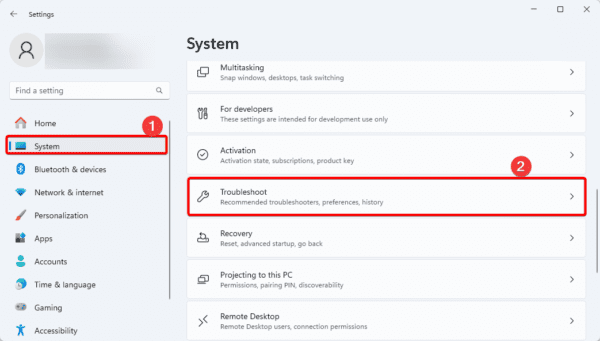
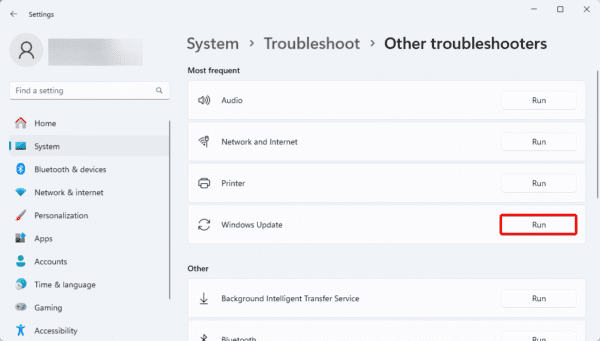
3. Click Other troubleshooters.
4. Click the Run option for Windows Update and follow the on-screen commands to complete the process.
2. Fix Drive Bad Sectors
When there are bad sectors on your hard disk, Windows may be unable to complete some functions as these disk locations will be unreadable. Windows 11 provides a built-in chkdsk tool to fix this problem. Follow the steps below to run it.
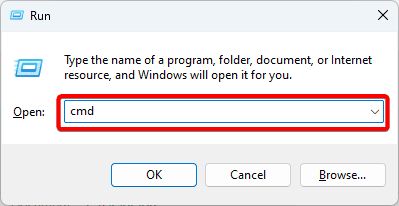
1. Press Windows + R to open the Run dialog.
2. Type cmd and hit Ctrl + Shift + Enter to open an elevated Command Prompt.
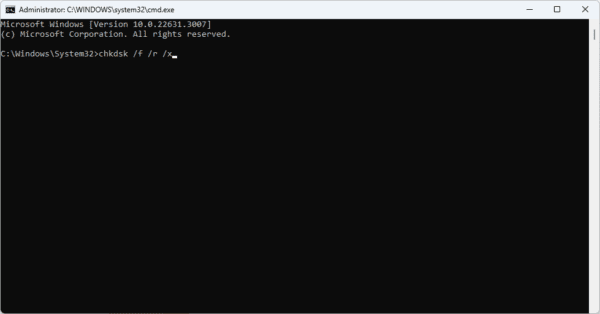
3. Type the command below and hit Enter, substituting C for your drive letter.
chkdsk /f /r /x
3. Fix File and Image Corruption with DISM and SFC Scans
Corruption within the system files or Windows installation may prevent your update from completing, resulting in the Windows 11 0xC007000D update error. You may use the built-in DISM and SFC scans to fix it.
These scans will find the corrupted files and repair or replace them. You may run them with the steps below.
1. Press Windows + R to open the Run dialog.
2. Type cmd and hit Ctrl + Shift + Enter to open an elevated Command Prompt.
3. Input the command below, hitting Enter after each one to find image corruption and repair them.
DISM /Online /Cleanup-Image /ScanHealth
DISM /Online /Cleanup-Image /RestoreHealth
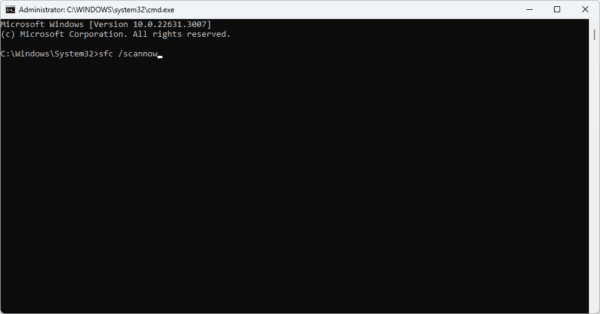
4. Lastly, run the sfc scan by inputting the command below and hitting Enter.
sfc /scannow
4. Reset Update Components on Windows 11
Windows 11 update components compare all the services and files that work together to download, install, and manage updates. You may experience the 0xC007000D Windows 11 update error when they are corrupt or buggy. Reset the following steps below.
1. Press Windows + R to open the Run dialog.
2. Type cmd and hit Ctrl + Shift + Enter to open an elevated Command Prompt.
3. Input the commands below, hitting Enter after each one to stop critical update services.
net stop wuauserv
net stop cryptsvc
net stop bits
net stop appidsvc
4. Run the command below to qmgr.dat files.
Del "%ALLUSERSPROFILE%\Application Data\Microsoft\Network\Downloader*.*"
5. Re-register BITS and Windows Update files by inputting the commands below and hitting Enter after each one.
regsvr32.exe atl.dll
regsvr32.exe urlmon.dll
regsvr32.exe mshtml.dll
regsvr32.exe shdocvw.dll
regsvr32.exe browseui.dll
regsvr32.exe jscript.dll
regsvr32.exe vbscript.dll
regsvr32.exe scrrun.dll
regsvr32.exe msxml.dll
regsvr32.exe msxml3.dll
regsvr32.exe msxml6.dll
regsvr32.exe actxprxy.dll
regsvr32.exe softpub.dll
regsvr32.exe wintrust.dll
regsvr32.exe dssenh.dll
regsvr32.exe rsaenh.dll
regsvr32.exe gpkcsp.dll
regsvr32.exe sccbase.dll
regsvr32.exe slbcsp.dll
regsvr32.exe cryptdlg.dll
regsvr32.exe oleaut32.dll
regsvr32.exe ole32.dll
regsvr32.exe shell32.dll
regsvr32.exe initpki.dll
regsvr32.exe wuapi.dll
regsvr32.exe wuaueng.dll
regsvr32.exe wuaueng1.dll
regsvr32.exe wucltui.dll
regsvr32.exe wups.dll
regsvr32.exe wups2.dll
regsvr32.exe wuweb.dll
regsvr32.exe qmgr.dll
regsvr32.exe qmgrprxy.dll
regsvr32.exe wucltux.dll
regsvr32.exe muweb.dll
regsvr32.exe wuwebv.dll
6. run the command below to reset Winsock.
netsh winsock reset
7. Restart the services you stopped in step 3 by entering the commands below and hitting Enter after each one.
net start bits
net start wuauserv
net start appidsvc
net start cryptsvc
8. Restart the computer.
5. Run the Windows Restore Utility
Note that this solution will only work if you created a restore point before encountering the 0xC007000D Windows update error on Windows 11. You should still try this solution even if you have not consciously created one because the computer may have automatically created a restore point.
A system restore will take your computer back to a state where it functioned properly.
1. Type restore on Windows Search and select the Recovery option.
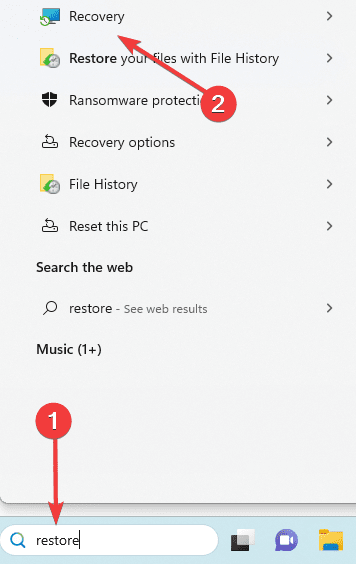
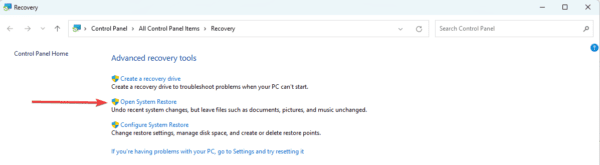
2. Click the Open System Restore option on the Control Panel.
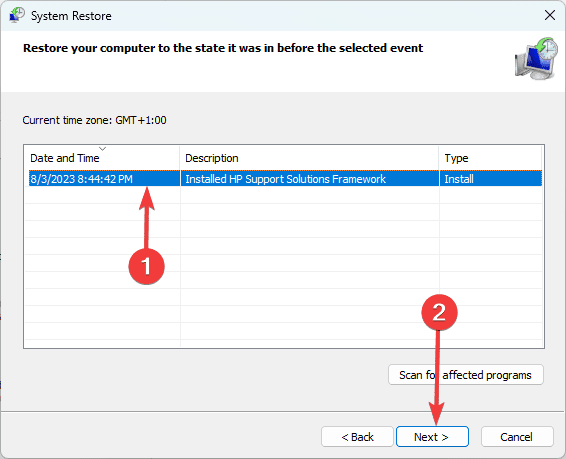
3. Select Choose a different restore point and click the Next button.
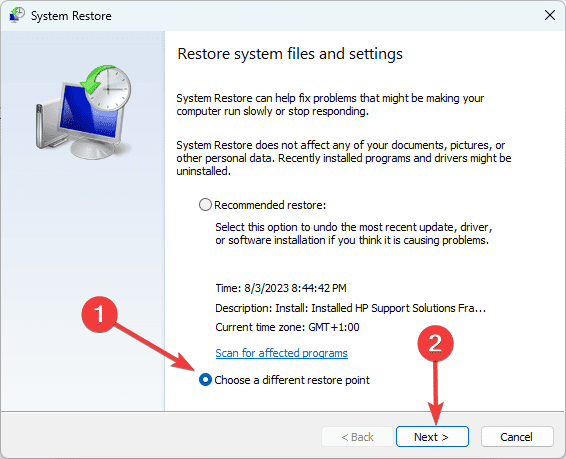
4. Select a different restore point from the available options and click Next.
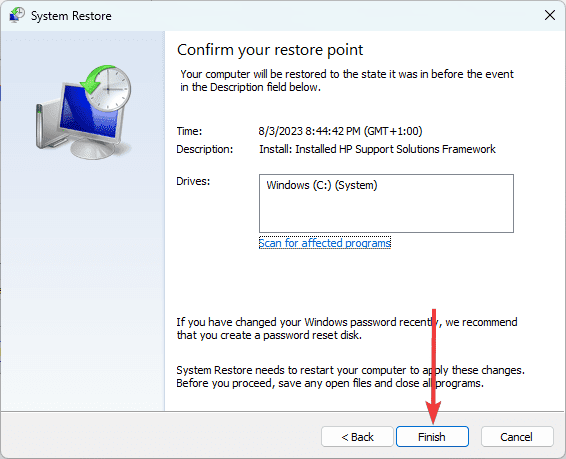
5. Lastly, click the Finish button. The process will begin, and your computer may restart as the restore runs.
6. Reset Windows 11 From the Could
Your version of Windows may be corrupted. This may be the primary cause of the Windows 11 update error 0xC007000D. A reset will fix it, but you must carefully perform it with a new Windows setup. Follow the steps below.
1. Press Windows + I to open the Settings app.
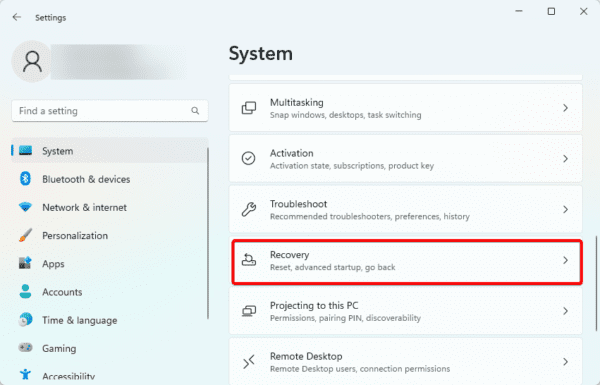
2. Scroll down the right pane and select Recovery.
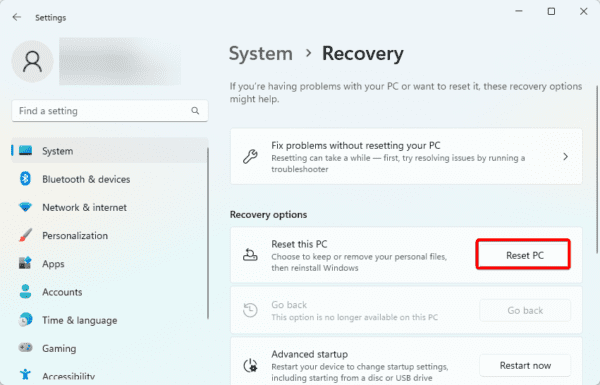
3. Click the Reset PC button.
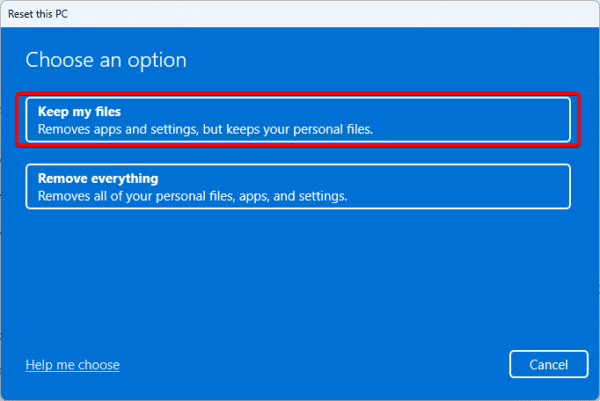
4. Select the Keep my files option.
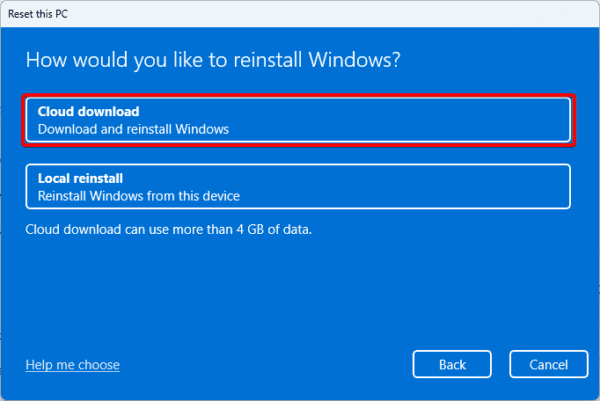
5. Click Cloud download.
6. Follow the wizard to complete the reset. Note that this will take a while, and your computer will restart several times.
FAQ on Windows 11 Update Error 0xC007000D
1. Are there any specific updates associated with Windows 11 Update Error 0xC007000D?
No, this error may be associated with any Windows update. You will resolve it regardless, using the solutions we have explored.
2. Can I get professional assistance for Windows 11 Update Error 0xC007000D?
Yes, you may seek professional assistance if these DIY solutions do not work.
Successfully Recovering from Windows 11 Update Error 0xC007000D
Windows 11 0xC007000D update error is one of the problems you may encounter during an update. However, the solutions are often easy. A last resort would be a reinstallation of the OS, but the chances of getting to this point are rare.