

Did you encounter the WHEA Uncorrectable error while using your Windows 11 device? This may have happened just after installing new hardware or software. Sudden crashes and the blue screen of death often accompany this error.
The primary causes of WHEA Uncorrectable BSoD are driver problems, failing hardware components, and software conflicts. You may use the solutions in this guide to fix the problem.
1. Fix Overheating
Excessive heat will affect hardware components on your computer and cause a lot of stress that can trigger the Whea uncorrectable blue screen of death.
Clogged fans, malfunctioning thermal paste, or insufficient airflow are the common reasons your computer may overheat. You should physically inspect the computer and ensure all possible overheating points are fixed.
You may also turn off the computer so that it cools off before you continue using it.
2. Update Drivers
Drivers connect your hardware components with the operating system. You may get the BSoD if the drivers are corrupted or damaged. This is because you may experience conflicts in communication on the computer.
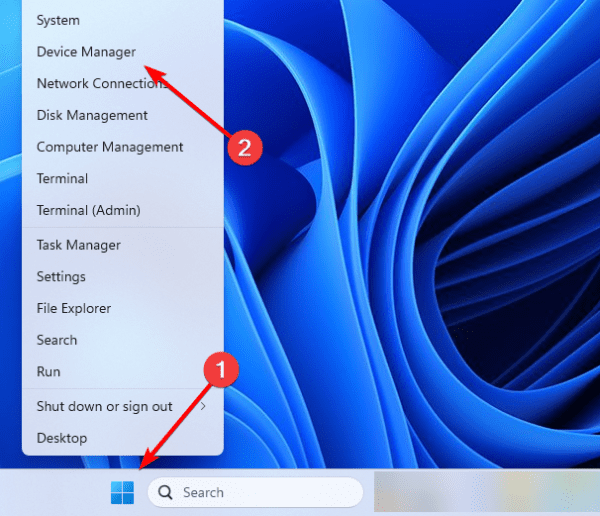
1. Right-click the Start menu and click Device Manager.
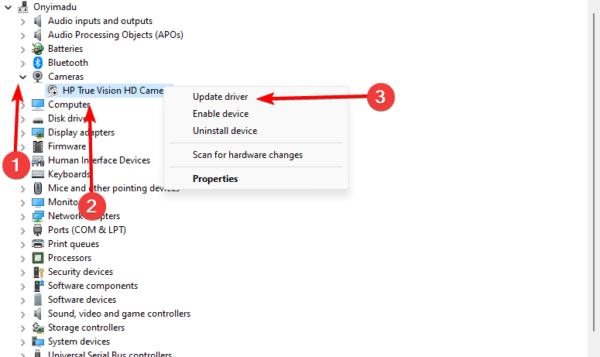
2. Expand any category with outdated drivers, right-click the driver, and click Update driver.
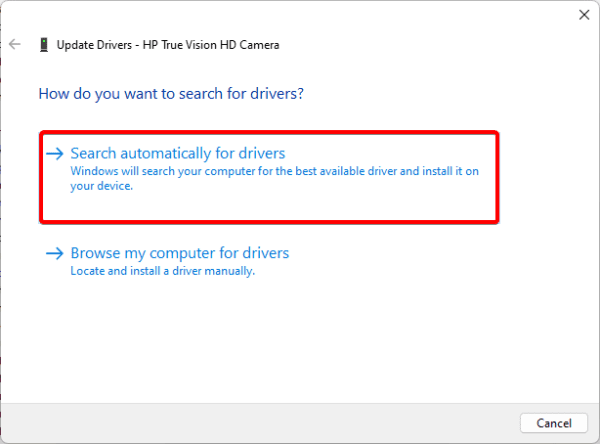
3. Click Search automatically for updates.
3. Fix RAM issues
Hardware components are often triggers for BSoDs. In this case, the RAM can cause memory problems that spark the whea uncorrectable BSoD. You may run the Windows Memory Diagnostic tool to fix RAM issues.
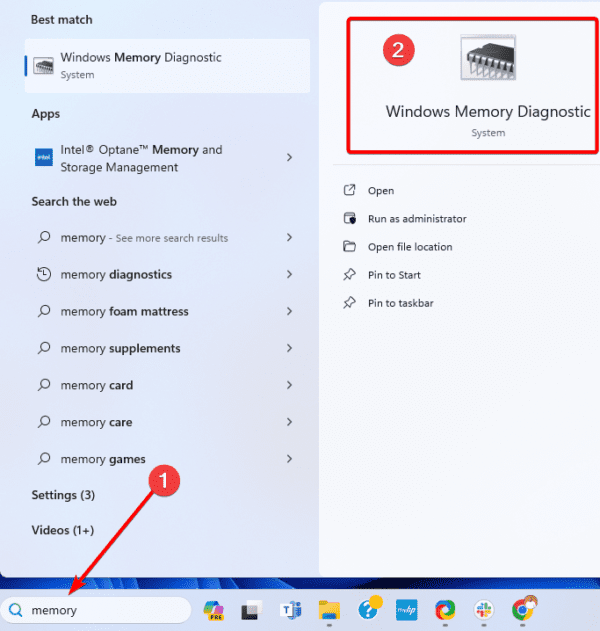
1. Click the Taskbar’s magnifying lens, type memory, and click Windows Memory Diagnostics.
2. Click Restart now and check for problems.
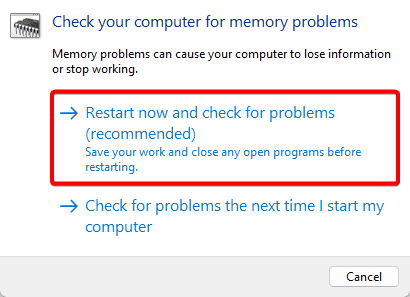
3. Follow any recommendations to fix the problem.
4. Stop Overclocking
if you overclock your computer, you should stop it. While it may make your computer more effective at performing some tasks, overclocking may also stress hardware components and cause overheating or the whea uncorrectable error on Windows 11.
If the problem persists after you stop overclocking, proceed to other solutions.
5. Uninstall Problematic Software
If you started facing the whea uncorrectable error after you installed an application, uninstalling it will fix the error. Some applications may cause conflicts, leading to the error.
1. Click the magnifying lens on the Taskbar, type control, and click Uninstall a program.
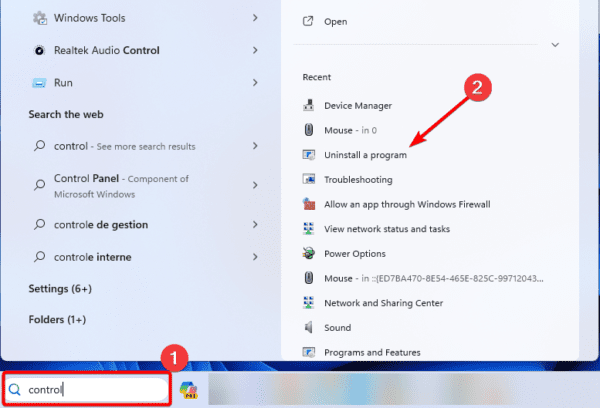
2. Click on the newly installed app and click the Uninstall button.
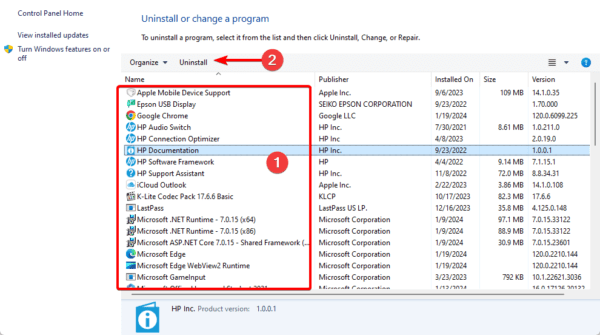
3. Follow the wizard to complete the process, then restart the computer.
6. Update BIOS
The BIOS helps your computer to initialize and manage components at startup. When you have the Whea uncorrectable error, updating the BISO can resolve bugs that trigger the error and cause hardware compatibility issues.
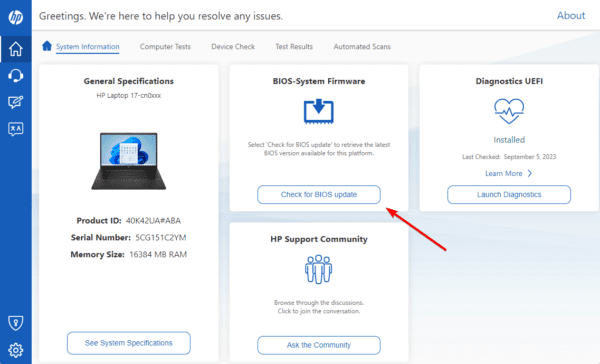
1. Type HP on the Start menu and select HP PC Hardware Diagnostics Windows.
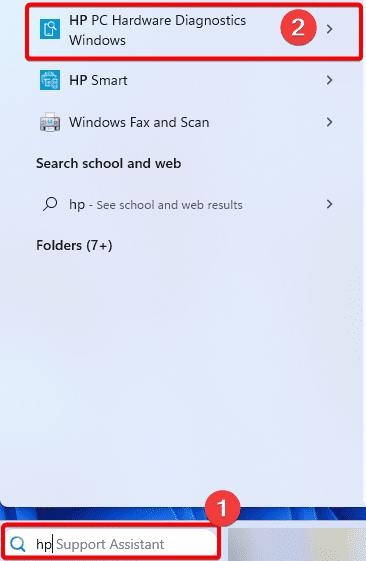
2. Under the BIOS-System Firmware section, click Check for BIOS updates.
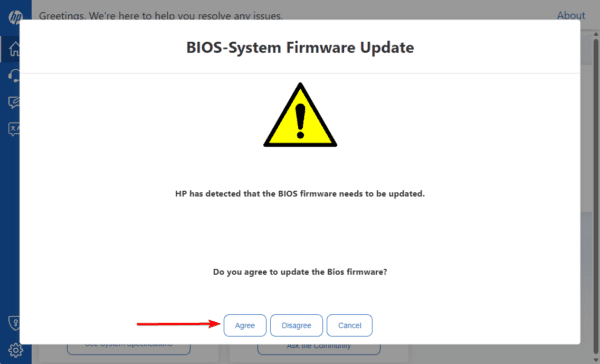
3. Click Agree.
7. Fix Corrupted Installation and System Files
There are two major corruptions you may face on a Windows computer. Installation and system file corruption. These two may cause the BSoD and can be resolved by running the DISM and SFc utilities.
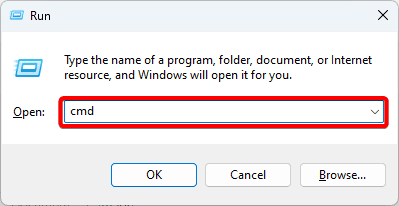
1. Press Windows + R to open the Run dialog.
2. Type cmd and hit Ctrl + Shift + Enter to open an elevated Command Prompt.
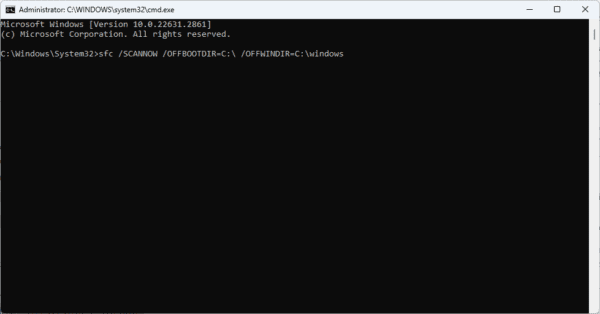
3. Type the command below, replacing C with the drive letters where you have your Windows installation.
sfc /SCANNOW /OFFBOOTDIR=C:\ /OFFWINDIR=C:\windows
4. Now run the command below to perform a DISM scan, and restart the computer once the scan is complete.
DISM /Image:C:\Offline /Cleanup-Image /RestoreHealth
8. Run the Chkdsk Scan
Since hardware components commonly cause the whea uncorrectable error, you must resolve problems with hardware units like your drives. A major problem drives may have is a bad sector; the chkdsk scan will effectively fix it.
1. Press Windows + R to open the Run dialog.
2. Type cmd and hit Ctrl + Shift + Enter to open an elevated Command Prompt.
3. Type the command below and hit Enter to run the Check Disk scan.
chkdsk C: /f
FAQ
Yes, this may be a good fix, but you must reinstall Windows only as a last resort because you may lose valuable data.
The system event log contains records of these hardware fault occurrences. By searching for any events that were recorded by WHEA, an application can obtain hardware error events from the system event log.
Going Past the BSoD
This is as much as we share in our comprehensive guide. You should be well over the problem at this stage. Please let us know which solution was most effective in the comment section.