

Windows Safe Mode is one of the most useful troubleshooting tools built into the OS. It allows you to start your computer with a limited set of drivers and processes, isolating elements that may cause a system crash while you troubleshoot. However, when you are done troubleshooting, you must exit Safe Mode in Windows 11.
There are a few options to exit this utility, and we will walk you through them in this guide.
How do I Exit Safe Mode Windows 11?
1. Restart the computer via the Start Menu
This is the easiest way to exit Safe Mode, but it will only work if you got into Safe Mode using Advanced Startup. If not, skip to other solutions.
Step 1: Press the Start menu.
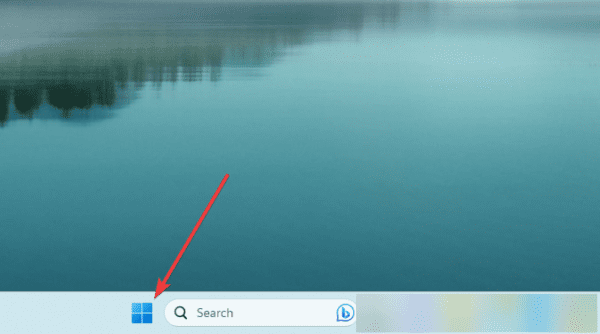
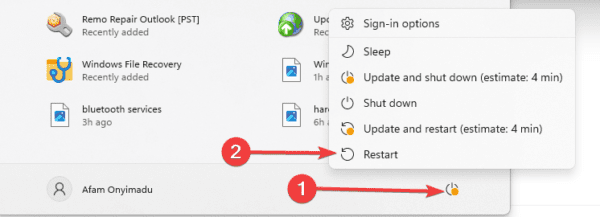
Step 2: Click the Power button and select Restart. Once the computer boots up, you will start in regular mode.
2. Exit Safe Mode Using the Command Prompt
The command Prompt lets you interact with the computer through a command-line text interface. You can run several utilities, including commands that end the Safe Mode process.
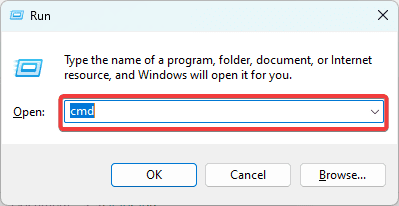
Step 1: Press Windows + R to open the Run dialog, input cmd, and hit Ctrl + Shift + Enter.
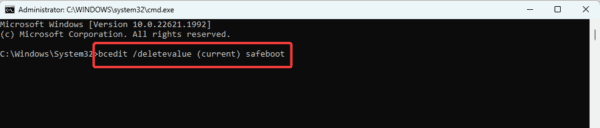
Step 2: Input the command below and hit the Enter key. This will remove Safe Mode from your computer’s startup.
bcedit /deletevalue (current) safeboot
Step 3: Restart your computer as we did in Solution 1, or run the script below to trigger a restart. Your computer will now boot into regular mode.
shutdown /r

3. Exit Safe Mode Using System Configuration
Windows 11 System Configuration is a utility that helps you configure various settings. It enables you to troubleshoot problems and start and end Windows Safe Mode. Here is how you boot out of Safe Mode with the utility.
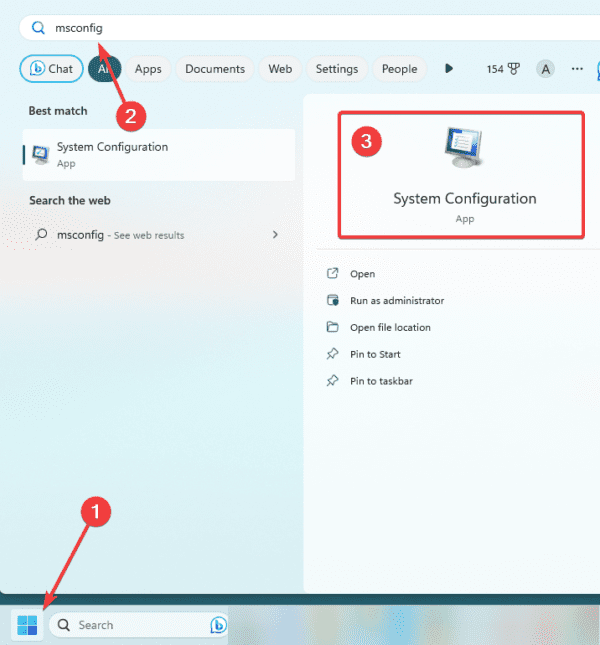
Step 1: Press the Start menu, type msconfig, and click System Configuration.
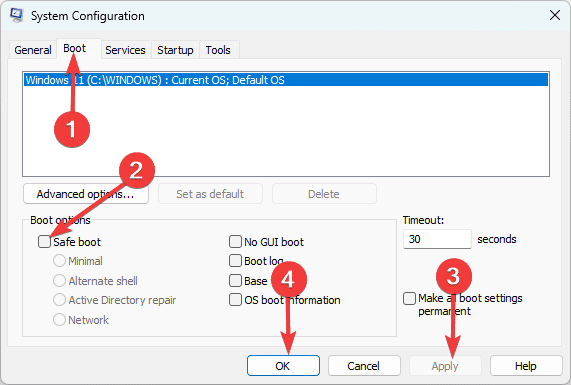
Step 2: Click the Boot tab, untick the Safe Mode option, then click Apply and OK.
Step 3: Restart your computer.
4. Exit Safe Mode Using Advanced Startup
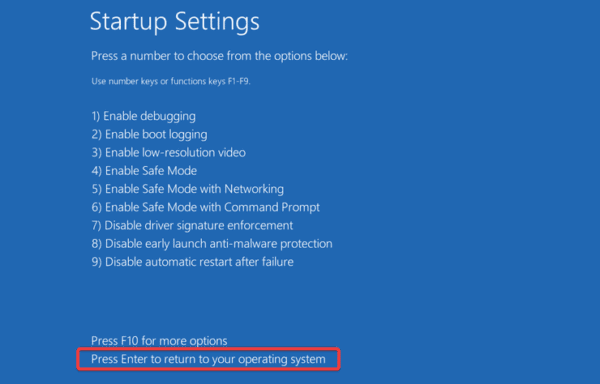
Windows 11 Advanced startup comprises a set of tools for troubleshooting. It includes options for Safe Mode, such as the regular Safe Mode, Safe Mode with Networking, and Safe Mode with Command Prompt. However, it may also be used to exit Safe Mode. Here is how:
Step 1: Press Windows + I to open the Settings app.
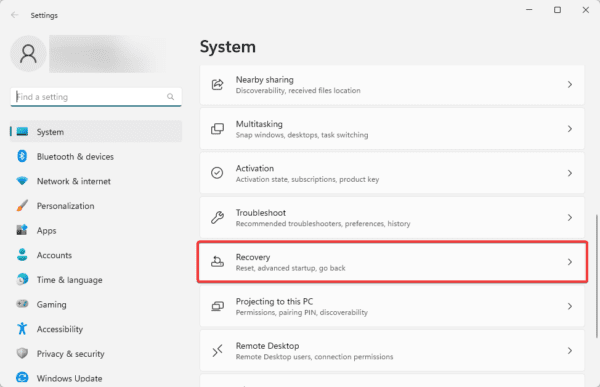
Step 2: On the right pane, click the Recovery option.
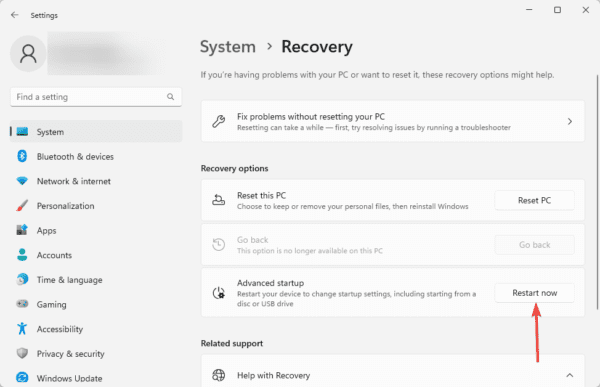
Step 3: Click the Restart now button.
Step 4: Select Troubleshoot.
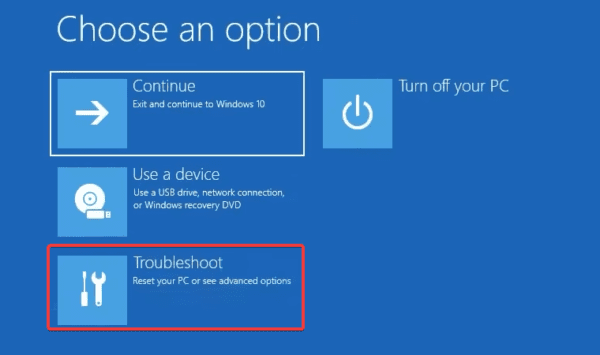
Step 5: Click Advanced options.
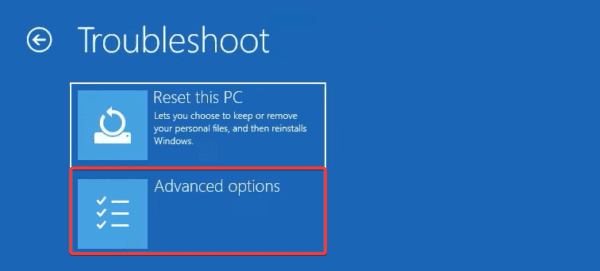
Step 6: Select the Startup Settings option.
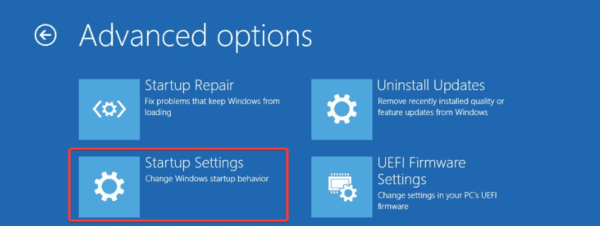
Step 7: Click the Restart button.
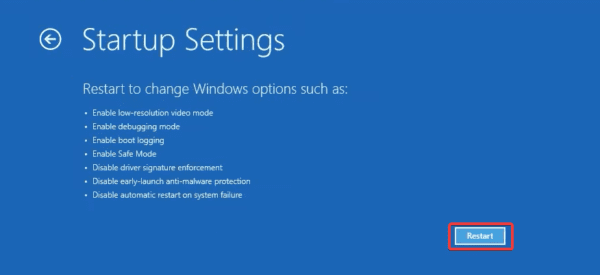
Step 8: Press the Enter key, and it will return to the operating system and boot out of Safe Mode.
FAQ on Exiting Safe Mode in Windows 11
1. What button is Safe Mode Windows 11?
Under Advanced Startup Settings, you will need F4 to enable Safe Mode, F5 to enable Safe Mode with Networking, and F6 to enable Safe Mode with Command Prompt.
2. Is Safe Mode F5 or F8?
Under Advanced Startup Settings, F5 enables Safe Mode with Networking while F8 will disable early launch anti-malware protection.
3. Why am I stuck on Safe Mode?
A few factors may contribute to this, including accidentally enabling Safe Mode, issues with a hardware driver or some third-party tool, and corrupt system files.
Using your computer after Safe Mode
Safe Mode is mainly a troubleshooting tool and is very useful in troubleshooting BSoD errors. After troubleshooting, you should not allow a repeat occurrence of the base problem. Best practices include updating drivers regularly, updating the OS, and ensuring the device is malware free.
None of these work. Not for me, at least. Might be the fact that I have a potato pc. I honestly don’t know. I went in safe mode using system configuration, but it automatically disabled indexing, and it said that I needed indexing to open system configuration, and it also said that I had to exit safe mode to enable indexing. Last option didn’t work either. When I pressed enter, it restarts it back in safe mode. And the coding thingy didn’t work either, it said bcedit didn’t exist and it couldn’t do anything about it.
Wait I’m so sorry Denver again I didn’t use run to open msconfig
Well that was dumb of me. I’m so sorry.