

WordPad got a lot of improvement in Windows 7. You can almost think it’s like a MS Word Lite version that comes in FREE without any commercial stuff involved. It’s got a lot of new features that make your work easier but when it comes to image editing it’s very basic. And I believe that’s why it embeds Paint Drawing, another built-in photo editing tool in Windows 7, naturally in WordPad. Thanks to AddictiveTips for sharing this tip with us.
And here is how exactly you can use it.
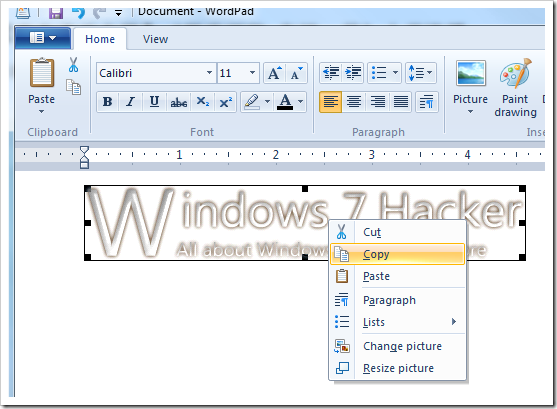
Step 1 – Inset an image into WordPad.
Step 2 – Right-click on the image and Copy it to the clipboard.
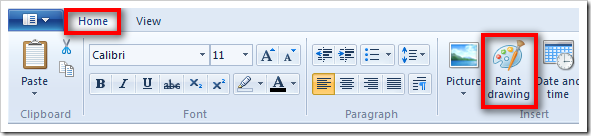
Step 3 – Click on Paint drawing icon in Home Tab, which opens Paint Drawing program in a separate window.
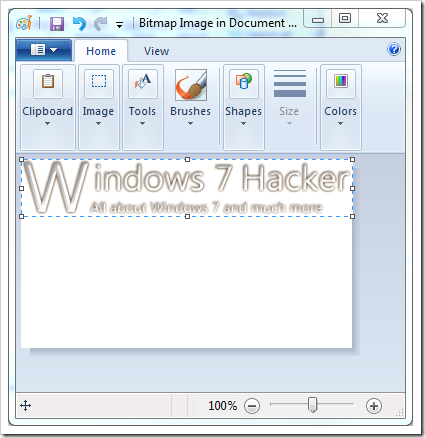
Step 4 – Paste image in Paint Drawing
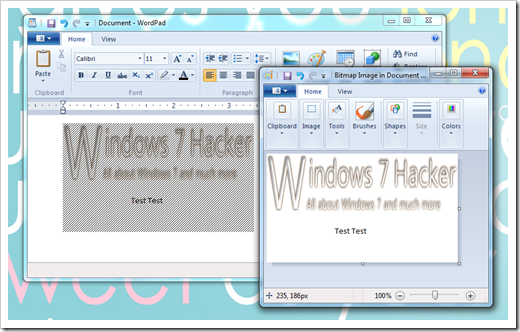
Step 5 – From this point on, whatever changes you make in Paint Drawing will get reflected into WordPad, automatically and instantly.
That’s it, and enjoy.