

Have you tried to open a file or folder and got the error message: You don’t currently have permission to access this folder? Just as the error states, it simply shows the account you are using to open the file does not have the appropriate privilege levels to access it.
A lot of our readers have complained about the error. You may encounter this situation because of inheritance issues, incorrect permissions, network sharing permissions, corruption, or ownership issues. Regardless of the cause, trying any of the solutions below would be best.
1. Grant Everyone Permission Via File Properties
Since permission issues are the most common triggers for you don’t currently have permission to access this folder on Windows 11, granting everyone or every user permission is a valid fix.
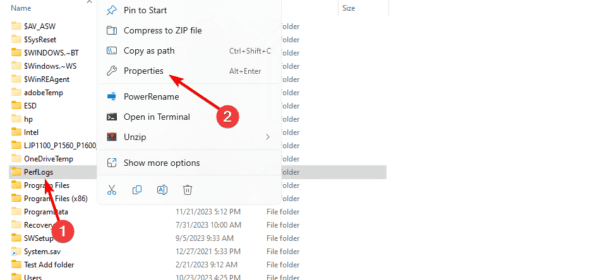
1. Right-click on the file or folder and click Properties.
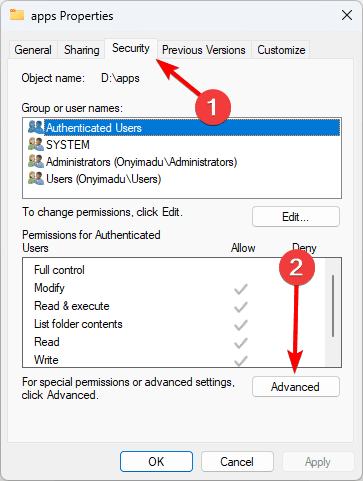
2. Click the Security tab, and click the Advanced button.
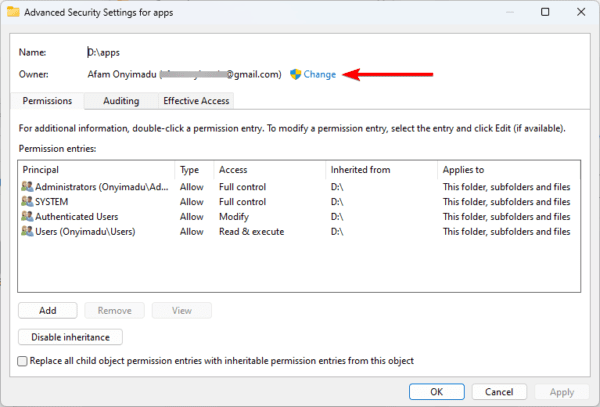
3. Click the Change option.
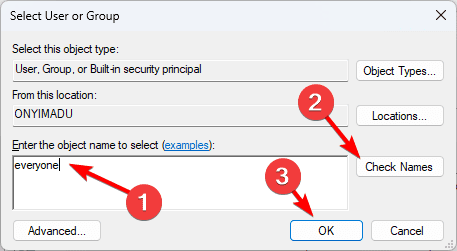
4. Type Everyone in the text field, click Check Names, then click OK.
5. In the pop-up, click OK, then click Apply and OK in the Properties window.
2. Grant Full Control to Authenticated Users Via File Properties
If the method above did not work, you may give full control to everyone on the Properties window. This is very similar to the solution above.
1. Right-click on the file or folder and click Properties.
2. Click the Security tab, and click the Edit button.
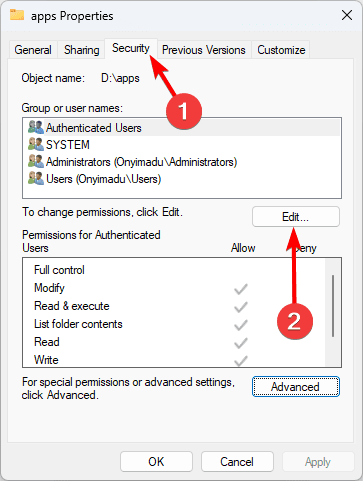
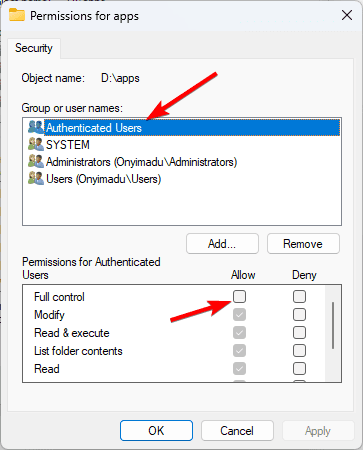
3. Click Authenticated Users, tick the Full Control checkbox, then click Apply and OK.
3. Change File or Folder Ownership and Include Inheritable Permissions
By giving the user account trying to access the folder complete authority over the folder and its contents, inheritable permissions, and changing file or folder ownership can resolve the “You don’t currently have permission to access this folder” problem on Windows 11. Any permissions that could be restricting access are overridden using this procedure.
1. Right-click on the file or folder and click Properties.
2. Click the Security tab, and click the Advanced button.
3. Click the Change option.
4. Type your username in the text field, click Check Names, then click OK.
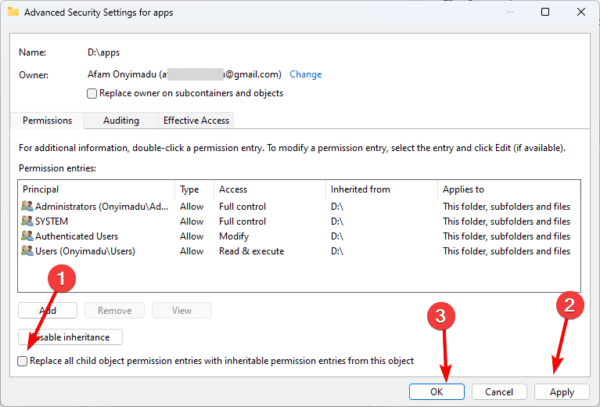
5. Tick the checkbox for ‘Replace all child object permission entries with inheritable permission entries from this object’. Click Apply and OK
4. Change the Owner on Subcontainers and Objects
Changing the owner of objects and sub-containers using the folder’s properties is an additional method of altering the ownership of a certain folder. We demonstrate how below.
1. Right-click on the file or folder and click Properties.
2. Click the Security tab, and click the Advanced button.
3. Click the Change option.
4. Type your username in the text field, click Check Names, then click OK.
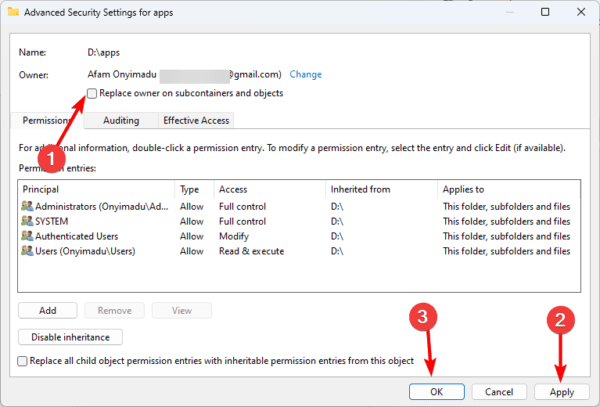
5. Tick the checkbox for ‘Replace owner on subcontainers and objects’. Click Apply and OK
5. Create a New User Profile
This should be explored as a last resort. However, it is very effective if you encounter you don’t currently have permission to access this folder on Windows 11 because of corruption on your user account.
Step 1: Press Windows + I to open the Settings App.
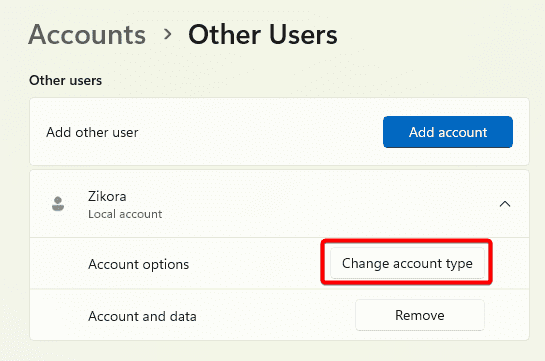
Step 2: Click the Accounts option on the left pane, then on the right, click Other users.
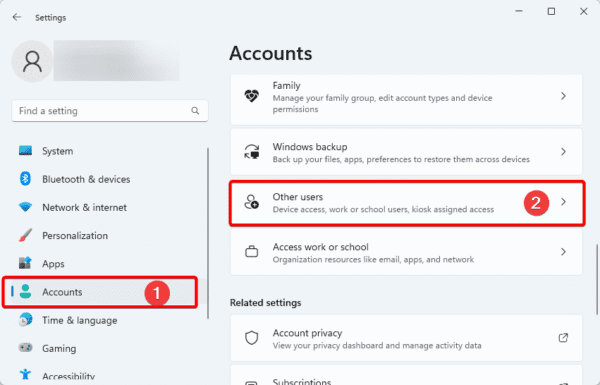
Step 3: Click the Add account button.

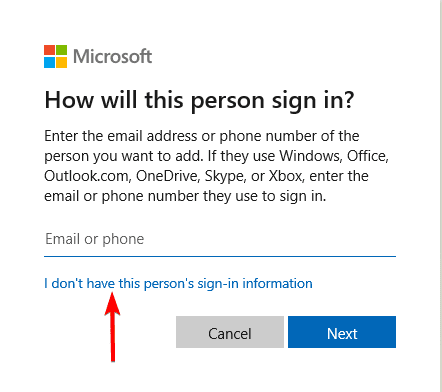
Step 4: Click the I don’t have this person’s sign-in information option.
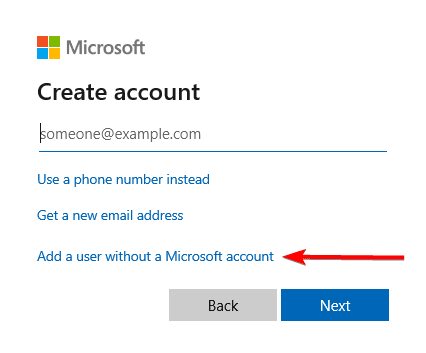
Step 5: Click the Add user without a Microsoft account option.
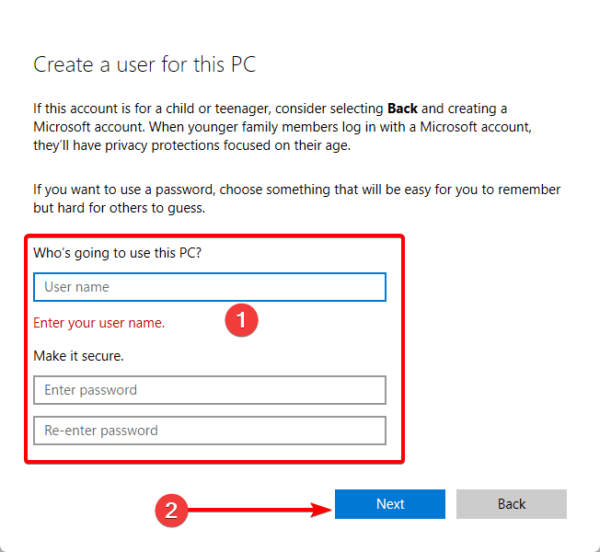
Step 6: Fill out the form with your desired username and password, then click next.
Step 7: Click Change account type for the newly created account.
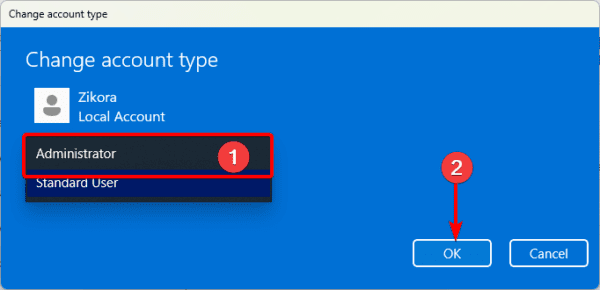
Step 8: Select Administrator and click OK.
Fixing You Don’t Currently Have Permission to Access This Folder on Windows 11
Fixing you don’t currently have permission to access this folder on Windows 11 is often very easy. You simply need to make sure the correct user has adequate ownership, and the problem is solved. If you have further questions, leave a comment below and we will get back to you.