

On Windows 11 devices, the Inaccessible Boot Device is an error many users encounter that may prevent them from booting correctly. This error often implies that the essential boot components are locked away in a partition, and Windows can not access it.
This guide will walk you through the causes and show you the most effective ways of fixing it on Windows 11.
What Are the Causes of Inaccessible Boot Device in Windows 11?
The following are the major causes of the Windows 11 problem:
- Missing or damaged system files that are essential for booting.
- Outdated drivers or driver corruption, especially storage controller drivers.
- Hardware defects or errors, especially SSDs and hard drives.
- Hardware changes that may disrupt the boot process.
Now that we know what may trigger this problem on your Windows 11 devices, let us explore some practical solutions.
How Do I Fix Inaccessible Boot Device in Windows 11?
Prerequisite: Boot in Safe Mode
Before going through the solutions we recommend in this guide, you may need to boot in safe mode, especially if the computer can not boot properly. While in safe mode, you may carry out any of the fixes below.
1. Disable VMD in BIOS
For some users, the Windows 11 inaccessible boot device problem is triggered when a Windows update also updates the BIOS settings and, in the process, enables VMD. This will lock the user’s account out of the Windows installation/drives. It would be best if you disabled the VMD in BIOS.
1. Start your computer; before it comes on, tap on the BIOS function key. The specific key will depend on your manufacturer.
2. Navigate to the Configuration tab using the arrow keys.
3. make sure the intel VDM Controller is set to Disabled.
2. Uninstall Updates
While updates are important since they often come with bug fixes and security patches, some updates may come with bugs. Users have noted that features or quality updates may be responsible for the inaccessible boot device.
1. Press Windows + I to open the Settings app.
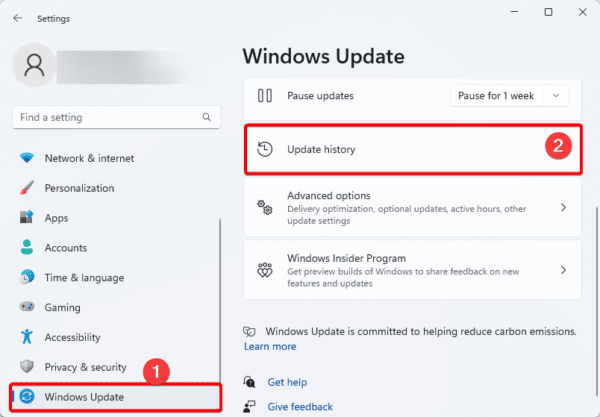
2. Click Windows Update on the left pane, and on the right, click Update History.
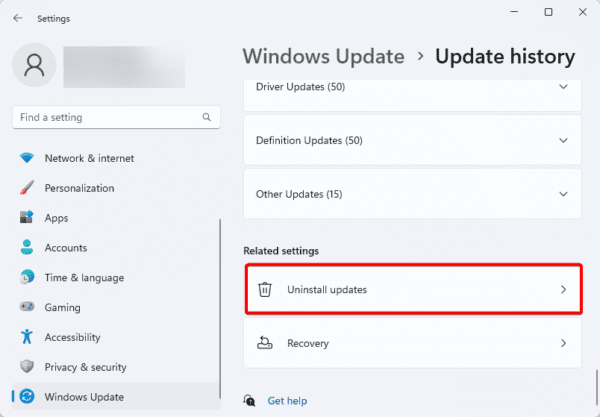
3. Scroll down and click Uninstall updates.
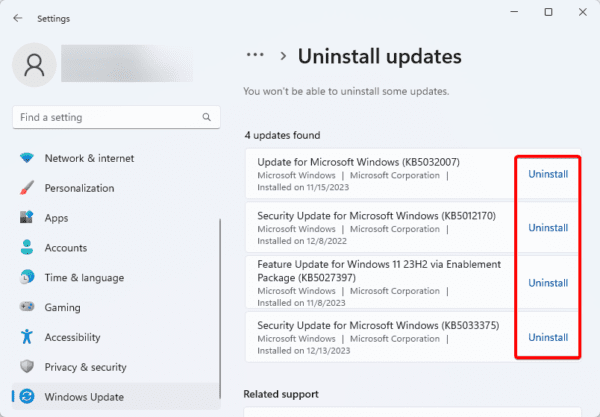
4. Click the Uninstall option for your latest update.
3. Run SFC/DISM Offline
The SFC and DISM scans effectively repair damaged system files and fix image corruption. Since these are two causes of the inaccessible boot device on Windows 11, these scans may be your solution. You may try running them offline to ensure that they run without interruption.
1. Press Windows + R to open the Run dialog.
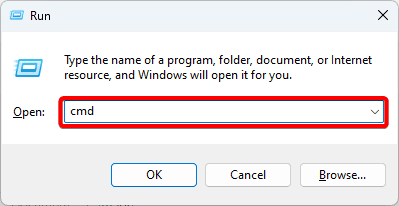
2. Type cmd and hit Ctrl + Shift + Enter to open an elevated Command Prompt.
3. Type the command below, replacing C with the drive letters where you have your Windows installation.
sfc /SCANNOW /OFFBOOTDIR=C:\ /OFFWINDIR=C:\windows
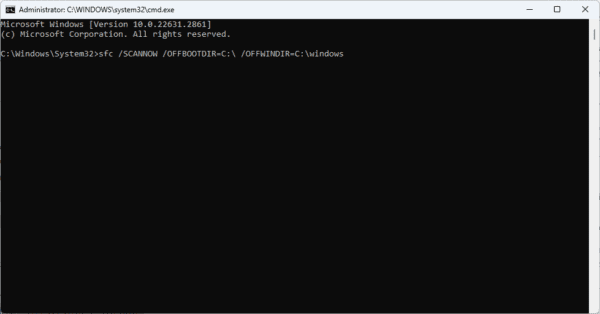
4. Now run the command below to perform a DISM scan, and restart the computer once the scan is complete.
DISM /Image:C:\Offline /Cleanup-Image /RestoreHealth /Source:C:\RepairSource\Windows\WinSxS /LimitAuthorizationPolicy:True
4. Run the CHKDSK Scan
Bad sector is a common drive problem. This problem may cause you to have an inaccessible boot device, as the corruption makes it impossible for Windows to access information from the drive properly. A CHKDSK scan is efficient in fixing this issue.
1. Press Windows + R to open the Run dialog.
2. Type cmd and hit Ctrl + Shift + Enter to open an elevated Command Prompt.
3. Type the command below and hit Enter to run the Check Disk scan.
chkdsk C: /f
5. Run Startup Repair
Startup repair is a Windows tool that can automatically detect and fix errors like inaccessible boot device that stop the Windows 11 device from starting up correctly.
1. Shut down the computer.
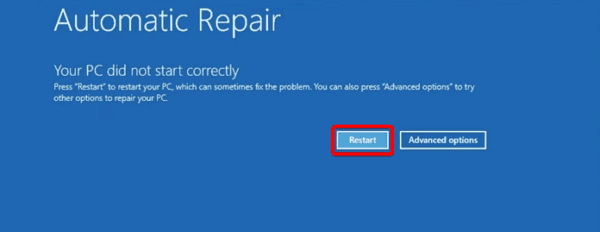
2. Press the power button to start the computer, and when you see a logo, press and hold the power button to turn off the computer. Repeat this three times, and on the fourth attempt, allow the computer to boot normally.
3. The computer should go into automatic repair and fix any problems found.
4. Click the Restart button, and the computer should boot normally.
6. Clean Install of Windows 11
You may want to try this solution as a last resort because you will lose important data on your drives. However, it is very effective as it will delete all partitions that may have triggered the problem.
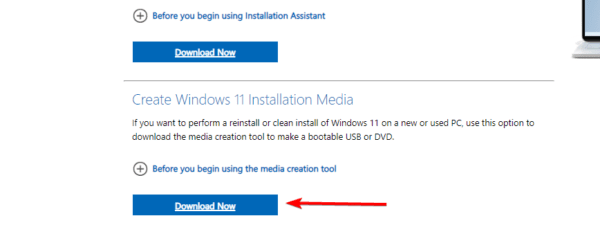
Step 1: Visit the Media Creation Tool page and click Download Now beneath Create Windows 11 Installation Media.
Step 2: Double-click the downloaded file.
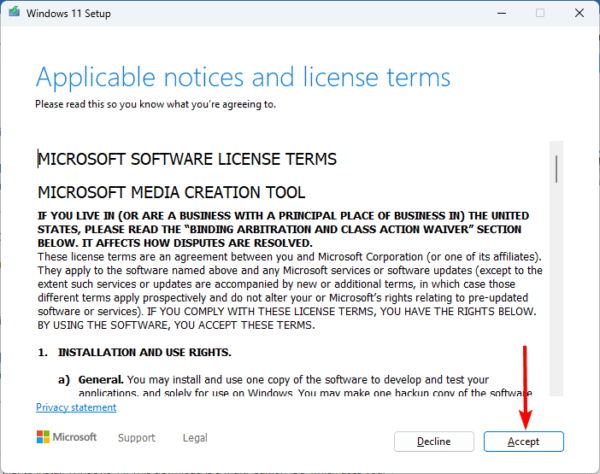
Step 3: Click Accept.
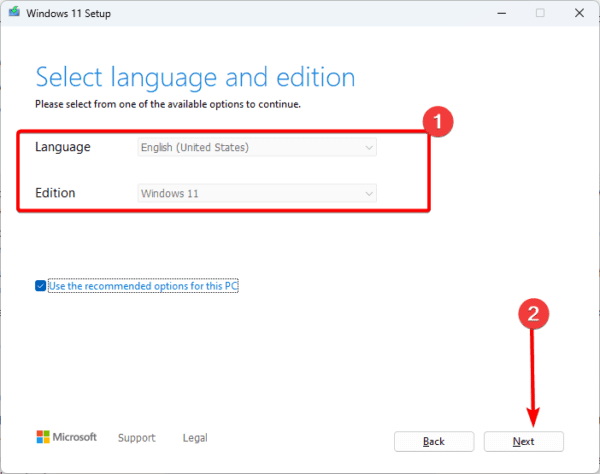
Step 4: Select a language and edition, then click Next.
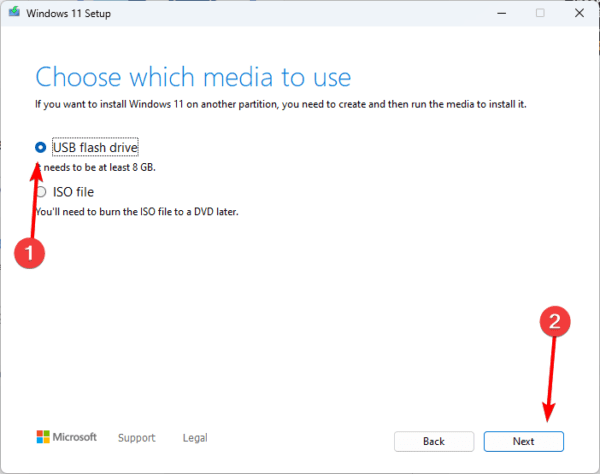
Step 5: Select USB flash drive and click Next. The setup and installation files will be downloaded using the Media Creation Tool and copied to the USB flash drive.
Step 6: You may use the flash drive to install Windows 11 on your computer.
FAQ
1. What is the boot drive error in Windows 11?
A hard drive issue with your system causes the boot device error. This issue might be caused by incorrect BIOS configuration settings or your device’s inability to identify the hard drive.
2. How do I recover an inaccessible boot device?
You may adopt any solutions we covered in this guide to fix the problem.
Final Thoughts
In this guide, we have covered all essential solutions to fix inaccessible boot device on Windows 11. It would be best to start with any solution that feels most applicable. Also, let us know in the comment section what was the most effective.