

This guide is a comprehensive fix if your wireless mouse is not working on Windows 11. Our fixes will resolve some situations if it is lagging, completely frozen, or unresponsive.
Software conflicts, driver issues, hardware malfunction, and connectivity issues usually cause this problem. Let us get into some easy and effective solutions.
Basic Checks
Before going into complex solutions, you may want to try the following:
Power On:
Confirm that you actually turned on the mouse. Also, confirm that the batteries are fresh and work properly.
USB Receiver:
Physically examine it for damage. If it is not damaged, ensure you have plugged it properly into a USB port. You may try different ports.
1. Enable WiFi and Bluetooth Connection
If you use a Bluetooth mouse, you must confirm that Bluetooth is enabled and the mouse is properly paired to your device. You may follow the steps below.
1. Press Windows + I to open the Windows Settings.
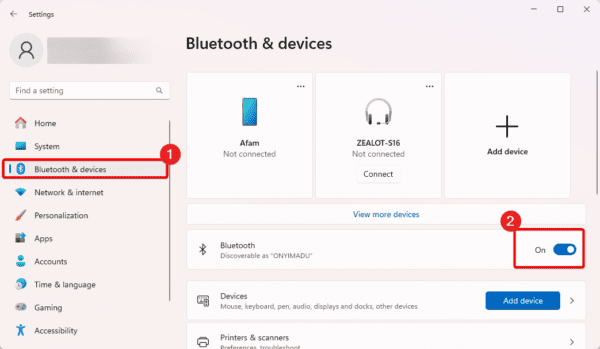
2. On the left pane, click Bluetooth & devices, then on the right, toggle on the Bluetooth switch.
2. Add the Bluetooth Mouse
If the Bluetooth is already on, ensure the mouse is added to your device. by following the steps below.
1. Press Windows + I to open the Windows Settings.
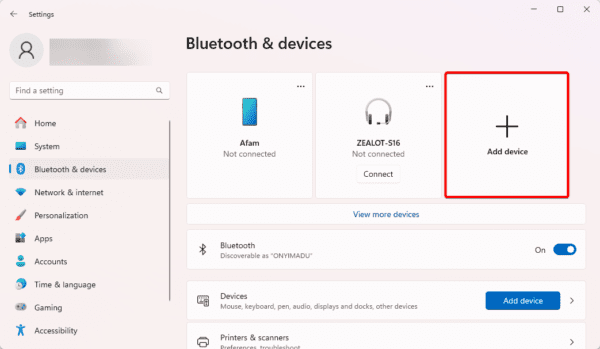
2. On the left pane, click Bluetooth & devices, then on the right, click the Add device button.
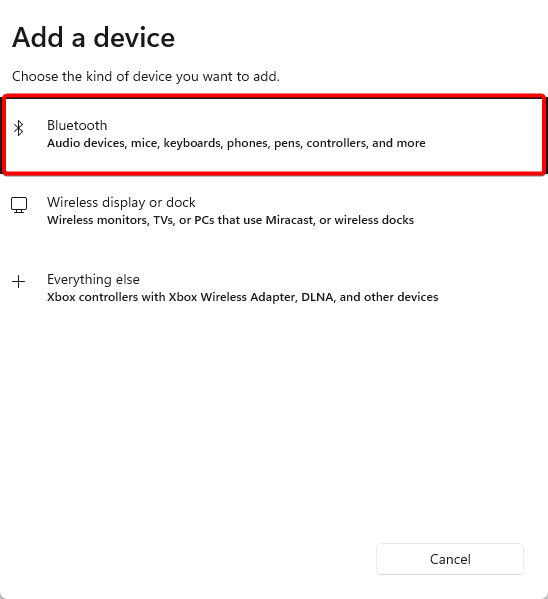
3. Click Bluetooth.
4. Click on your mouse and follow the wizard to complete the process.
3. Restart the Computer
Sometimes, when the wireless mouse is not working in Windows 11, the problem is triggered by minor glitches or bugs in your computer. You should consider a reboot. This process can forcefully shut down problematic processes and resolve the connection problem.
4. Disable Fast Startup
Disabling Fast Startup will resolve the wireless mouse issue in some instances. This helps because Fast Startup can interfere with driver loading. Follow the steps below.
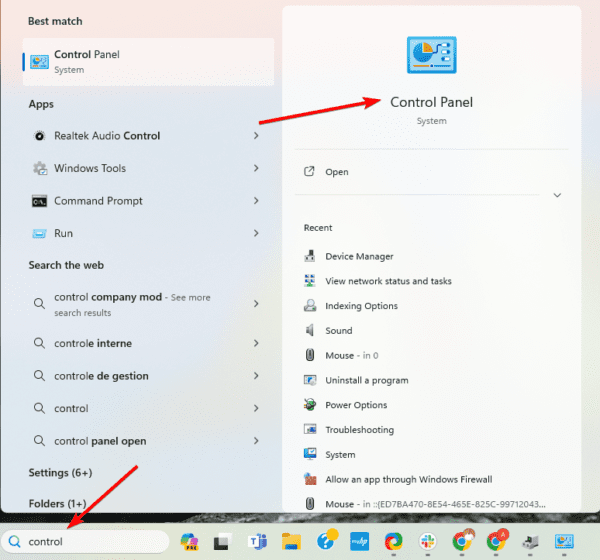
1. Press the magnifying lens of the Taskbar, type control, and click Control Panel.
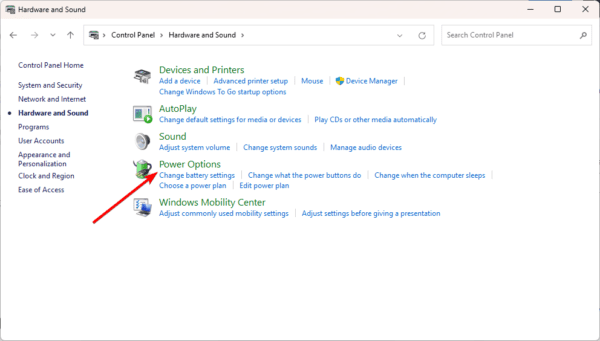
2. Click Hardware and Sound, then select Power Options from the list.
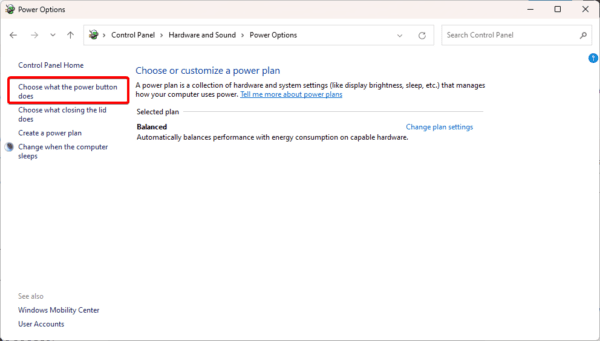
3. Click Choose what the power button does on the left pane.
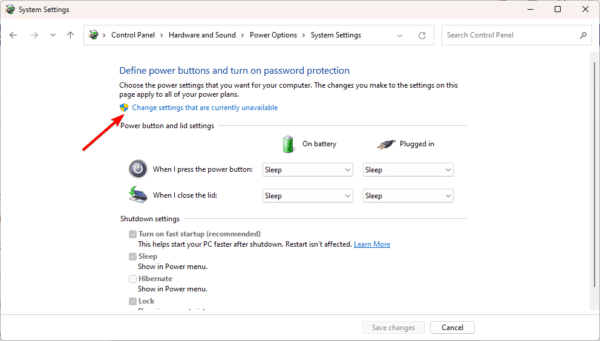
4. Select the Change settings that are currently unavailable option.
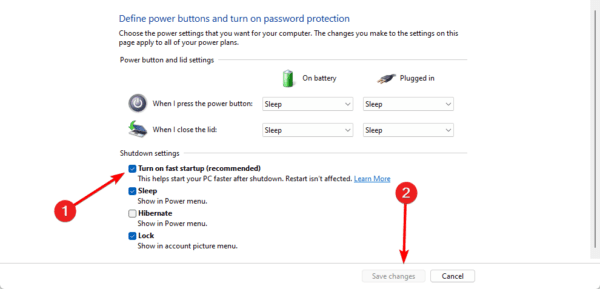
5. Uncheck Turn on fast startup.
5. Update or Reinstall the Driver
Outdated drivers are a common cause of hardware malfunction. If your wireless mouse is not working in Windows 11, updating the mouse’s Bluetooth and wireless drivers will fix the problem. You may manually do this or use some reliable driver update software.
If an update does not work, you should follow the steps below to reinstall the driver.
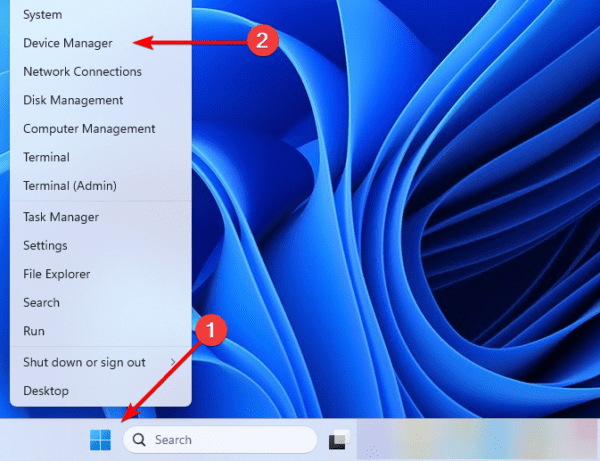
1. Right-click the Start menu on your Taskbar and select Device Manager.
2. Expand the Bluetooth category, right-click on the driver, and select Uninstall device.
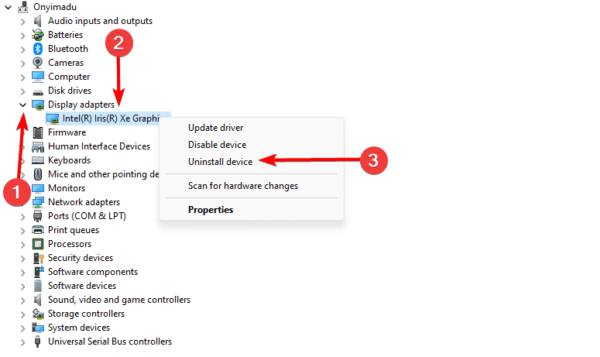
3. Confirm your choice.
4. Restart the computer.
6. Run Hardware Troubleshooter
Windows comes with a set of troubleshooters. You may launch the hardware troubleshooter so that it scans the computer for issues affecting any hardware components. It will perform scans and fix these issues or recommend the best solutions.
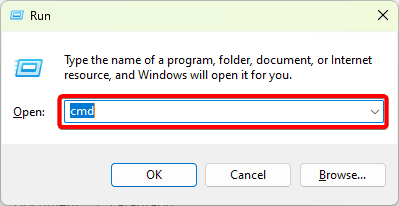
1. Open the Run dialog by pressing Windows + R.
2. Type cmd and hit Ctrl + Shift + Enter to open a Command Prompt with elevated rights.
3. Type the command below and hit Enter.
msdt.exe -id DeviceDiagnostic
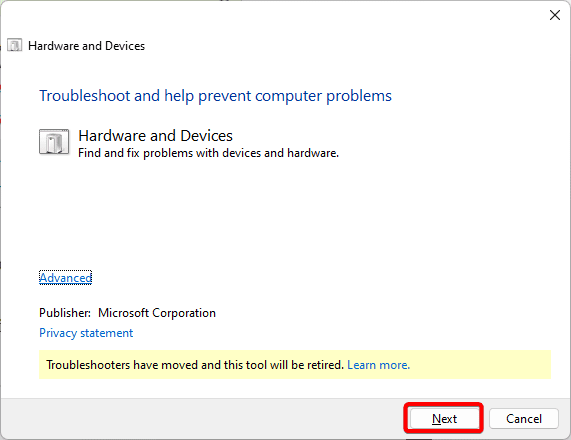
4. Click Next and follow the wizard to complete the process.
7. Disable or Conflicting Software
When the wireless mouse is not working in Windows 11, it may be a sign of software conflicts. If the problem started just after a certain software was installed, you should disable or uninstall the software.
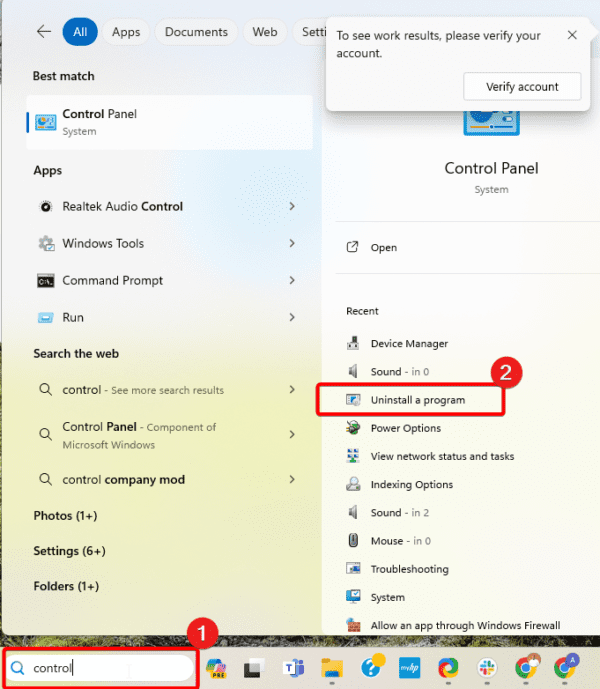
1. Click the magnifying lens on the Taskbar, type control, and click Uninstall a program.
2. Click the problematic program and click Uninstall.
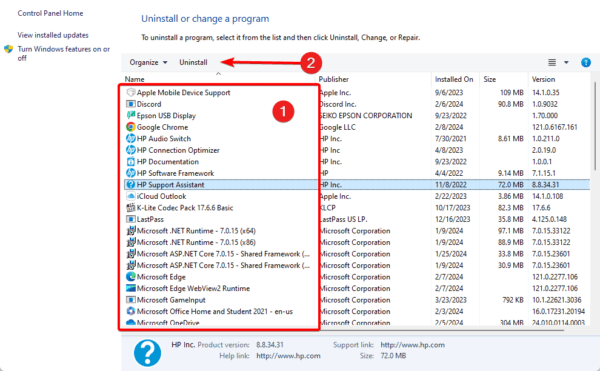
3. Restart your computer after the uninstallation is complete.
Regain Proper Mouse Function
When a wireless mouse is not working in Windows 11, you will regain proper mouse function using the solutions we have explored in this guide. Start with the basic checks, then walk your way down the solutions.
Let us know what solution fixed it in the comment section below.
FAQ
Generally speaking, turning off Fast Startup doesn’t damage your machine. It could, however, somewhat lengthen boot times. If necessary, you may activate it again later.
A new mouse might be required if all other troubleshooting methods have been tried and you believe there has been a hardware malfunction. But before you decide, think about how old and expensive your existing mouse is.