

On a computer, the battery is your backup. It becomes invaluable if there is a power outage or you must work remotely away from a power source. However, if your Windows laptop is plugged in but not charging, you will not have enough backup power when needed.
Unfortunately, this charging issue is one that so many Windows users face across manufacturers. We have had complaints about laptop plugged in, not charging in HP, Dell, Toshiba, and more.
In this guide, we show you the best ways to resolve it.
Why Is My Laptop Plugged in and Not Charging?
You may have loose connections between the charger and the computer. This may mean the charging pin is not correctly inserted into your computer, or the charger’s power capable is not adequately connected to a power outlet.
You may also be facing a problem with your battery. Some common problems are age and wear, overheating, or, in rare cases, manufacturing defects.
Power supply issues are also a common cause of the charging problem. Common examples include a defective power adapter and faulty outlets.
Regardless of the cause, trying the solutions in this guide would be best.
Preliminary solutions
You may fix the problem with easy workarounds before proceeding to anything complex.
- Press the power button for about 10 seconds to force a computer shutdown. Then restart the computer.
- Remove all peripheral devices to ensure no connected devices are causing charging conflicts.
- Verify all connections are tight.
If the problem continues, move to other solutions below.
1. Allow the Laptop Cool
Overheating may cause your battery not to charge. Some manufacturers may include it as a preventive step when the battery or laptop gets too hot. In that case, turn off the computer, unplug the charger, and leave it for 30 minutes to 1 hour.
When the computer is cooled off, and you restart it, the battery should start charging.
2. Perform a Physical Inspection of Hardware Components
When your laptop is plugged in but not charging, there may be problems with physical components like the cables, battery, or charging port.
Start by carefully examining the charger’s cable for any breakage. You may use it to charge a different computer to ascertain if it still functions.
Also, check the charging port. Ensure it has no particles or debris that may obstruct charging.
Lastly, if you have access to the battery, physically examine it for any damage. Observe closely to see if it is swollen. This may be a clear sign that you need a new battery.
3. Power Drain the Computer
When you power drain a computer, you remove any residue power in components like the capacitor or the circuits. This step may reset components related to charging and fix the battery problem.
1. Remove the battery.
2. Press down the power button for about 2 minutes.
3. Replace the battery, start your computer, and see if it starts charging.
You may repeat the steps above 3 or 4 times till it works.
4. Confirm you are Using the Correct Charger
You may believe that it is the correct charger because the power adaptor fits. This is not the case most of the time. You may use a less powerful charge that perfectly fits your computer’s charging port.
This is even more common among laptops that charge with USB-C since you can plug in a USB-PD charger. You should check the power rating of your charger against what the manufacturer recommends. The power rating is usually written on the charging brick.
5. Run a Battery Check
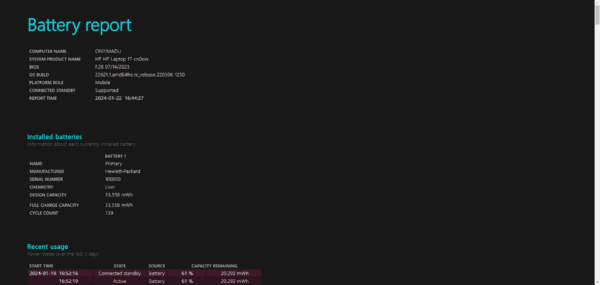
This check is crucial because it gives you vital information, like the estimated battery life. You may quickly identify from this report if the battery is bad or worn out.
1. Press Windows + R to open the Run dialog.
2. Type cmd and hit Ctrl + Shift + Enter to open the Command prompt.
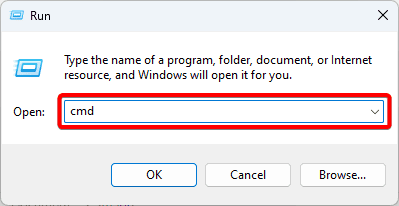
3. Type the command below and hit Enter.
powercfg /batteryreport
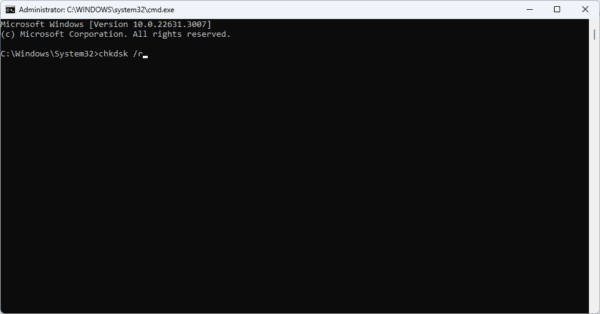
4. Press Windows + E to open File Manager and search for the file below.
C:\Windows\System32\battery-report.html
5. Go through the report and verify if the battery has a problem.
6. Reinstall the Battery Drivers
The battery driver lets your computer know how to function with the battery. If it is outdated or corrupted, it is customary to display abnormal behavior, and this may be why the laptop is plugged in but not charging. You may use an automatic driver updater software or follow the steps below.
1. Right-click the Start menu and select Device Manager.
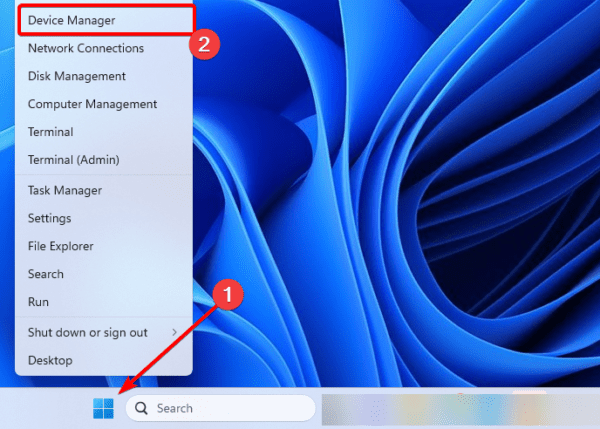
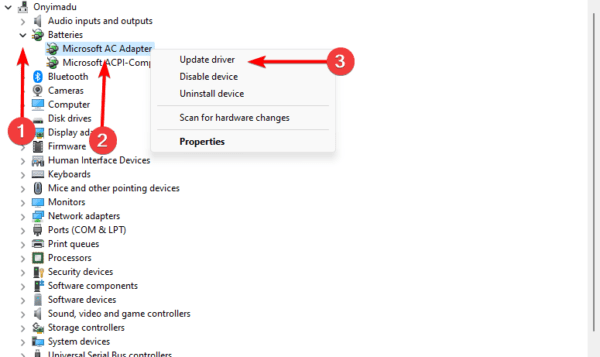
2. Expand the Batteries category, right-click on your battery driver, and select Update driver.
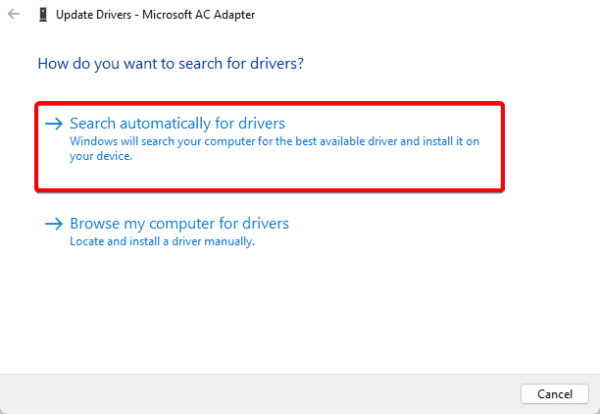
3. Select Search automatically for updates.
Laptop Plugged in but Not Charging
This problem should often be fixed with the solutions discussed in this guide. However, there is a chance that the charger’s battery is damaged, and you would need a replacement.
Remember always to buy hardware components that match the recommendations of your manufacturer.