

Microsoft Edge is the default browser for Windows 11. While some believe its only importance is downloading other browsers, it has highly evolved to become a great option for everyday use. That’s why it gets very uncomfortable when Edge is not working on Windows 11.
Note that there are many issues associated with the browser not working. Some could be:
- Microsoft Edge not opening on Windows
- Microsoft Edge constantly crashing
- The Microsoft Edge browser not responding
In this guide, we look at this problem and offer the best solutions to fix it.
Why is Microsoft Edge Not Working in Windows 11?
One of the major reasons Microsoft Ende may not be opening is because of a corrupted user profile. While this may affect the Edge browser, you may also notice some other apps are not responding.
Another problem that may make Microsoft Edge not work is the corruption of dependent files. This may be a sign of a virus on the computer, and you should scan using a robust antimalware.
Another reason for this problem is conflicting extensions. Even though Microsoft Edge is built on Chromium and offers a huge extension library, not all interact properly. These conflicts may cause Microsoft Edge to hang.
In some rare cases, you may be having resource constraints. This is especially true if you use an older computer with too many open applications or processes.
What Do I Do if Microsoft Edge Is Not Working in Windows 11?
1. Restart the Computer
While it may seem like an insignificant step, it is very effective in some cases. If you run an old, congested computer, you may have too many processes that make the browser hang or unresponsive. Restarting your computer will force most open processes to shut down.
2. Close Other Open Apps
If you would rather not turn off the computer, close other open applications. Your computer may simply be struggling with resource allocation, and by closing these apps, you create more space for the browser. This is especially useful when Microsoft Edge is hanging or not opening.
3. End The Edge processes on the Task Manager
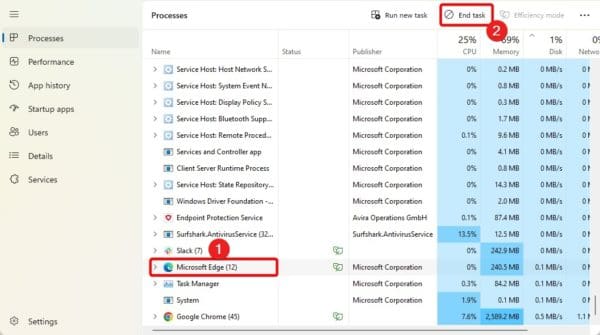
While it may be impossible to shut down an unresponsive Microsoft Edge application, you may easily shut down all related processes on the Task Manager. You may have to pause Task Manager updates to find these applications.
1. Press Ctrl + Shift + Esc to open the Task Manager.
2. Click Microsoft Edge and click End task.
4. Repair Microsoft Edge
Windows apps often come with a Repair functionality. This feature will help you clear the cache or remove misconfigurations that make apps malfunction.
You may repair Microsoft Edge by following the steps below.
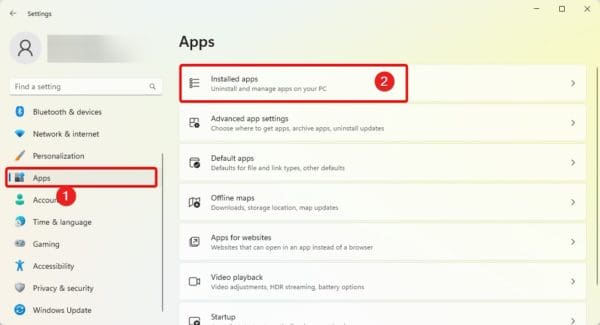
1. Open the Settings app by pressing Windows + I.
2. Click Apps on the left pane, then on the right, click Installed Apps.
3. Click the three dots for Microsoft Edge and click Modify.
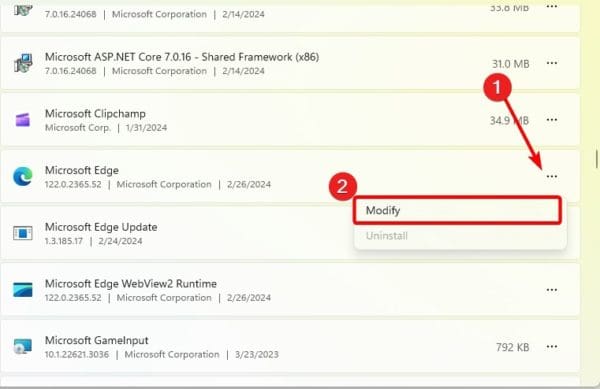
4. Click the Repair option.

5. Update Microsoft Edge
Updating Microsoft Edge will be a valid fix if it is hanging, slow, or sometimes unresponsive. This is because updates often include bug fixes, which may correct this problem.
1. Launch Microsoft Edge.
2. Click the ellipses or menu icon on the top right, then click Settings.
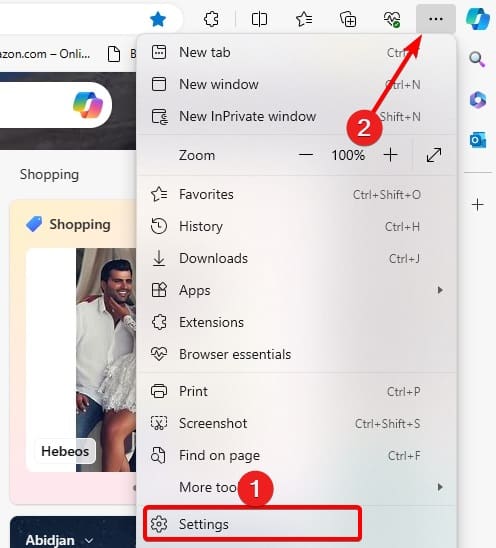
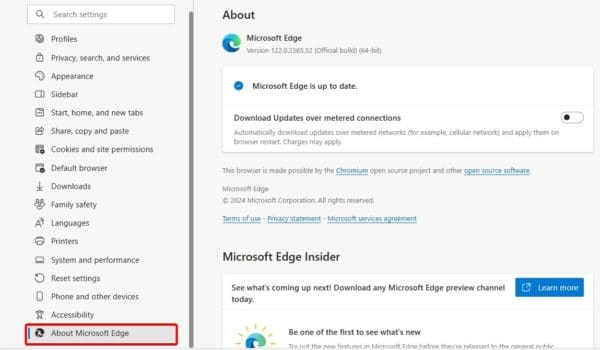
3. On the left pane, click About Microsoft Edge and any updates will automatically be installed. Restart the browser if prompted to do so.
6. Delete Microsoft Edge User Data
Every Edge user has some data stored on the computer. If this data is corrupted, you may notice that Microsoft Edge becomes unresponsive or closes as soon as it opens. You may delete the corrupted data to fix the problem.
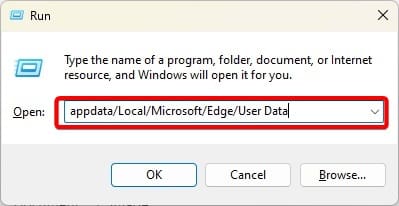
1. Press Windows + R to open the Run dialog.
2. Type the path below and hit Enter.
appdata/Local/Microsoft/Edge/User Data
3. Delete the Default folder.
7. Uninstall or Remove Extensions
While extensions will improve the browser’s functionality, some may not be suited for interaction with others. These conflicts may cause problems and may be why Edge is not working in Windows 11.
1. Launch the Microsoft Edge browser.
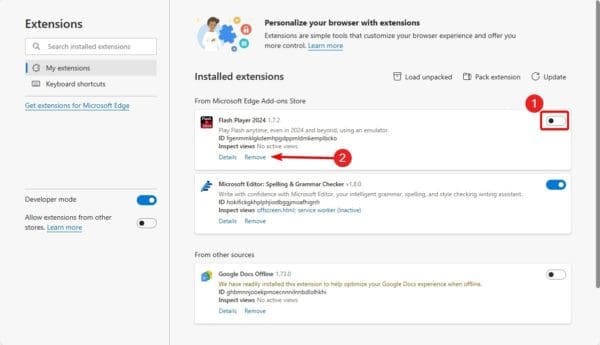
2. Type the path below in the browser address locator and hit Enter.
edge://extensions/
3. Toggle off recently added extensions or click the Remove option.
8. Run the DISM and SFC Scans
As we stated earlier, corruption is a major reason for Microsoft Edge not working. You may fix corruption on Windows 11 by running the DISm and SFC scans.
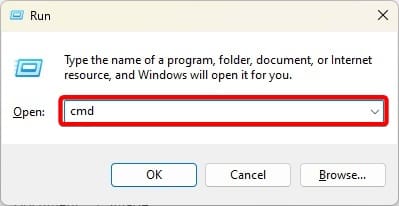
1. Open the Run dialog by pressing Windows + R.
2. Type cmd and hit Ctrl + Shift + Enter.
3. Type the command below and hit Enter to run a DISM scan.
DISM /Online /Cleanup-Image /RestoreHealth
4. Run the command below to fix system file corruptions.
sfc /scannow
9. Create a New User Profile
We have mentioned that corruption may cause the Microsoft browser not to work. One such corruption is with your user profile. You may create a new user and try opening Edge again.
1. Press Windows + I to open the Settings App.
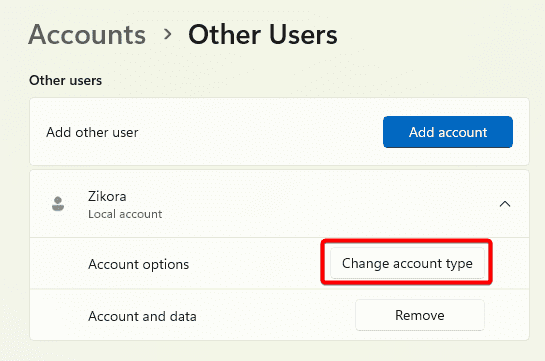
2. Click Accounts on the left pane, then on the right, click Other users.
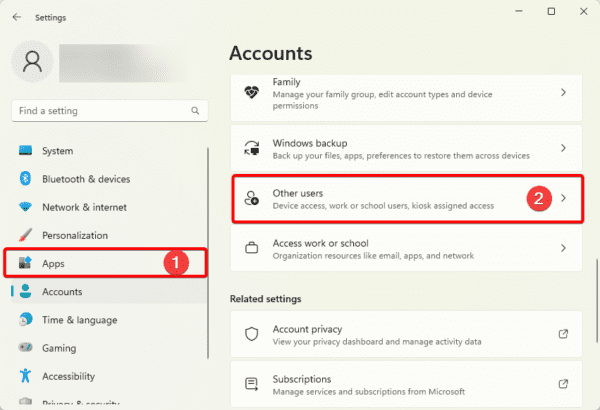
3. Click the Add account button.

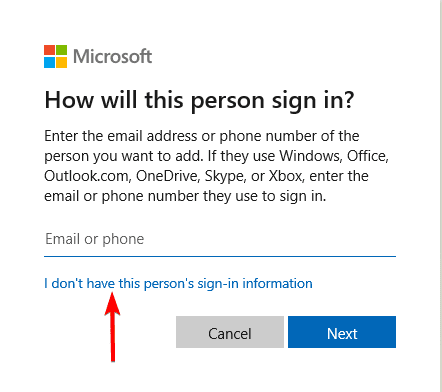
4. Click I don’t have this person’s sign-in information.
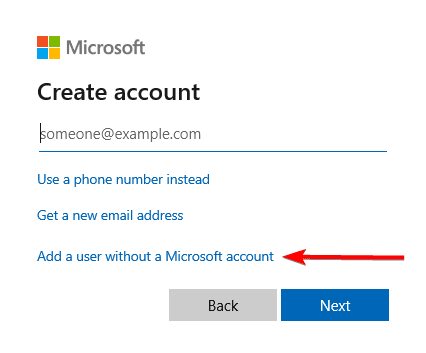
5. Select Add user without a Microsoft account.
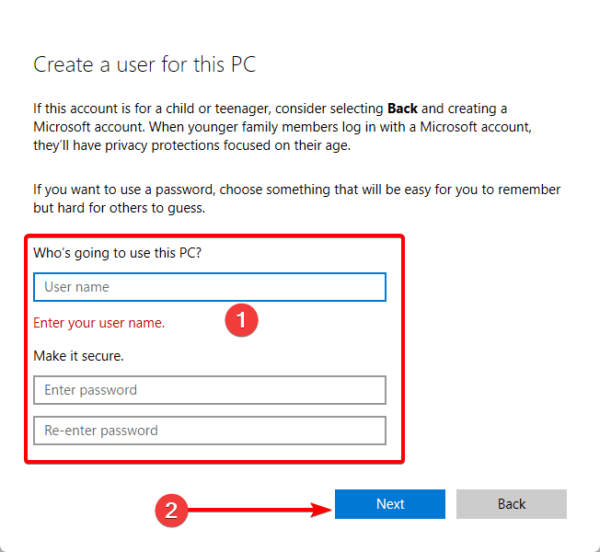
6. Fill out the form with your desired username and password, then click next.
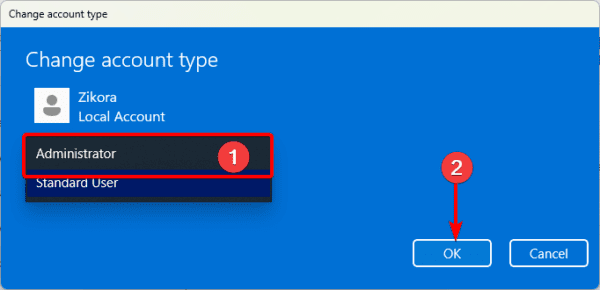
7. Click the Change account type button for the newly created account.
8. Select Administrator and click OK.
10. Reinstall Microsoft Edge
As a last resort, you should install Microsoft Edge. To reinstall the browser, you must first uninstall it. However, this will mean you lose settings and configuration. Also, ensure all leftovers are removed, then download and reinstall a fresh copy of Edge.
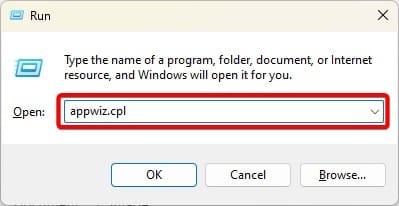
1. Press Windows + R to open the Run dialog, type appwiz.cpl, and hit Enter.
2. Click Microsoft Edge, then click Uninstall and follow the wizard to complete the process.
3. Download and install a fresh Edge copy.
Moving Past an Unresponsive Microsoft Edge
If you have followed the solutions in this guide, you should have fixed the Microsoft Edge problem on your computer.
We are curious to know what worked. Please tell us in the comment section below.