

The Windows 11 Action Center, which comprises the Notification Center, quick settings, and accessibility options, comes in handy while using the operating system. However, some users have encountered problems and complain that the Action Center is not opening in Windows 11.
This guide explores the common causes and provides the most effective fixes for this problem. Let’s get to it.
Why Won’t My Action Center Open?
When the Windows 11 Action Center is not opening, it often comes down to any of the following triggers:
- Corruption of vital app installation or system files associated with the Action Center.
- Bad configuration, especially those that disable the Action center.
- Bugs in a recent update or an outdated Windows 11 operating system.
Regardless of the cause, you should try the solutions we discuss below.
1. Re-Register Your Action Center
Corruption is a major reason the Action Center is not opening on Windows 11. Your Actin center settings may be bad, so reregistering it will be an easy fix. Follow the steps below.
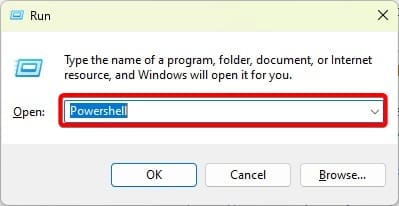
1. Press Windows + R to open the Run dialog, type Powershell, and hit Ctrl + Shift + Enter.
2. Type the script below and hit Enter.
Get-AppXPackage | Foreach {Add-AppxPackage -DisableDevelopmentMode -Register "$($_.InstallLocation)\AppXManifest.xml"}3. Restart the computer for the changes to take effect.
2. Tweak Registry Configuration for Action Center
The Windows registry is a hierarchical database of app configurations and operating system configurations. You may enable the Action Center from this utility. Follow the steps below.
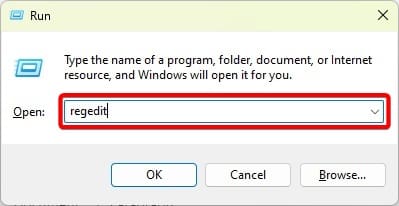
1. Press Windows + R to open the Run dialog.
2. Type regedit and hit Enter.
3. Navigate to the path below:
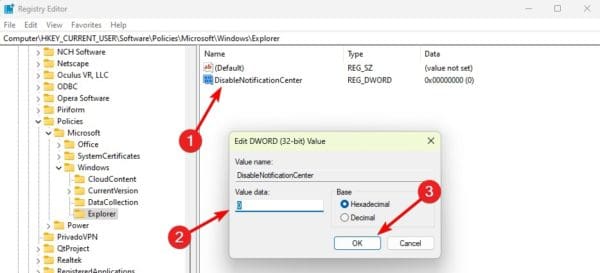
Computer\HKEY_CURRENT_USER\Software\Policies\Microsoft\Windows\Explorer
4. Double-click on the DisableNotificationCenter value and change the Value data to 0. You may need to first create this key by clicking a space on the right pane, hovering New, clicking DWORD (32-bit) Value, and naming it DisableNotificationCenter.
3. Enable Action Center Via Local Group Policy Editor
The Group Policy Editor is a utility for managing multiple Windows computers simultaneously. It gives an easy option for enabling the Action Center.
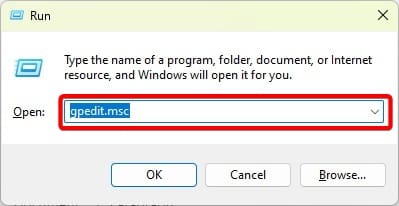
1. Press Windows + R to open the Run dialog.
2. Type gpedit.msc and hit Enter.
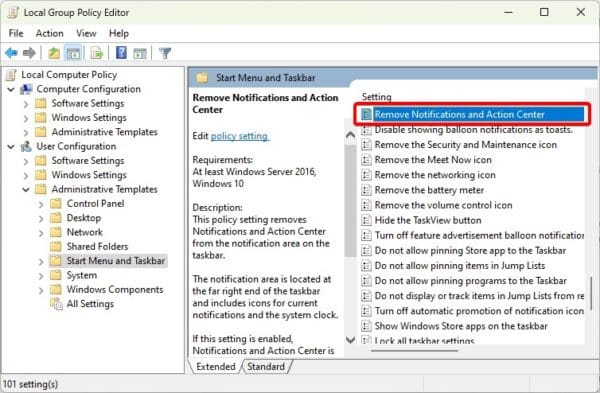
3. Navigate to the path below:
User Configuration / Administrative Templates / Start Menu and Taskbar
4. On the right pane, double-click Remove Notifications and Action Center.
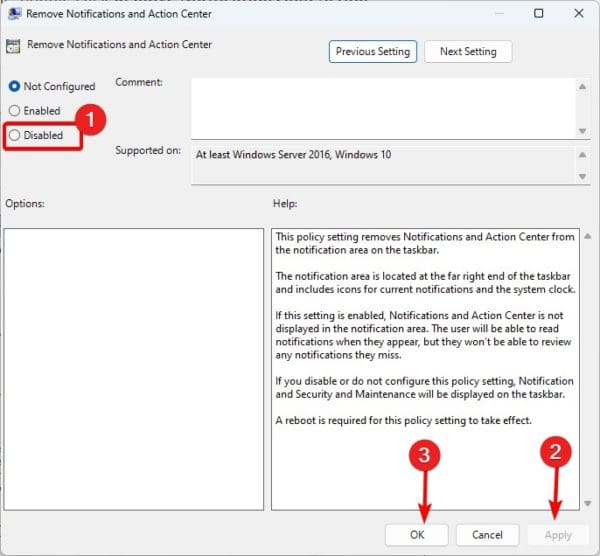
5. Click the Disabled radio, then click Apply and OK.
4. Update Windows 11
Updating the Windows 11 operating system is an effective fix because Windows updates often come with bug fixes and security patches. Follow the steps below to update your OS.
1. Press Windows + I to open the Settings app.
2. Click Windows Update on the bottom left pane and then Check for updates on the right.
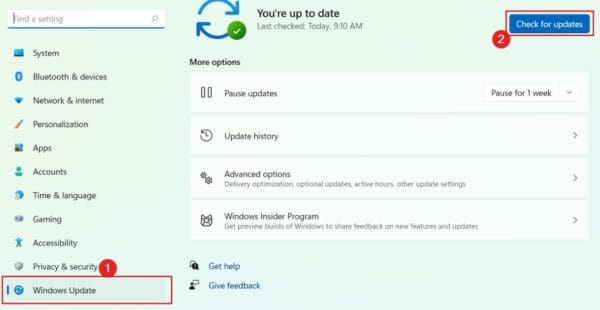
3. If there are updates, download and install them, then restart your computer.
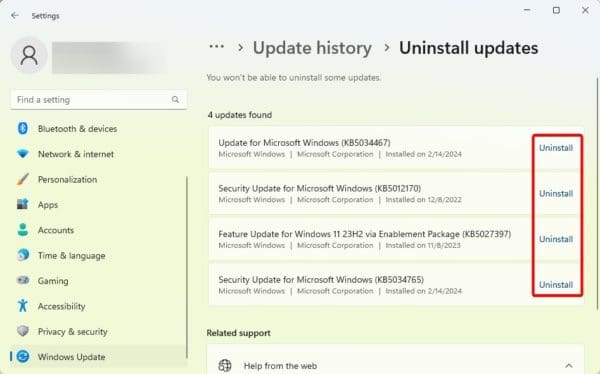
5. Uninstall Windows Updates
While updating Windows is a best practice, on rare occasions, updates may be buggy, which may be why the Action Center is not opening in Windows 11. If you experience the problem just after an update, you must uninstall or roll back the update.
1. Press Windows + I to open the Settings app.
2. Click Windows Update on the bottom left pane and then Update history on the right.
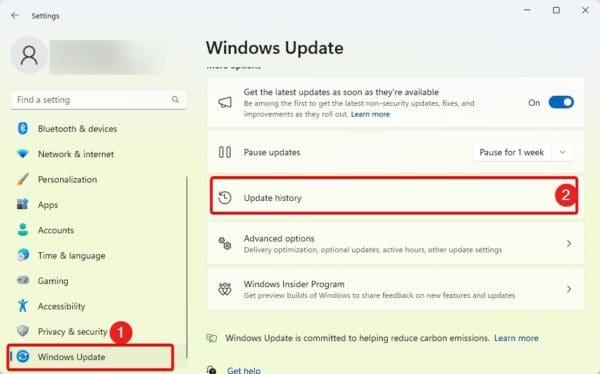
3. Scroll down the left pane and click Uninstall updates.
4. Click Uninstall for your most recent update.
6. Fix File Corruption with the DISM and SFC Scans
As stated earlier, file corruption is why the Action Center is not opening in Windows 11. The DISM and SFC tools are important built-in utilities that fix corruption on Windows 11.
1. Press Windows + R to open the Run dialog.
2. Type cmd and hit Ctrl + Shift + Enter to open the Control Panel with administrative rights.
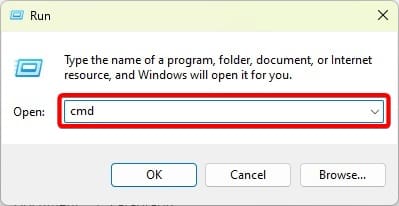
3. Type the commands below, hitting Enter after each to scan for image corruption and fix identified corruption.
DISM /Online /Cleanup-Image /ScanHealth
DISM /Online /Cleanup-Image /RestoreHealth
4. run the command below to fix system file corruption, then restart your computer after it completes executing.
sfc /scannow
7. Run the System Restore Utility
The System Restore tool takes your computer to a previous state before the Action Center problem started. For this fix to work, you should have created a restore point. However, Windows may also automatically create restore points for you. Follow the steps below to run System Restore.
Note that you may lose data during this process.
1. Click the magnifying lens on the Start menu, type Restore, and click Recovery.
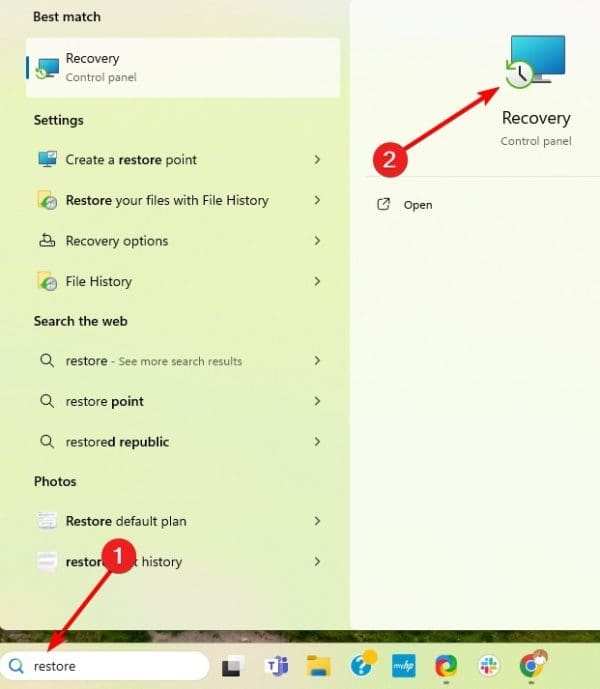
2. Click the Command prompt’s Open System Restore option.
3. Select Choose a different Restore point and click Next.
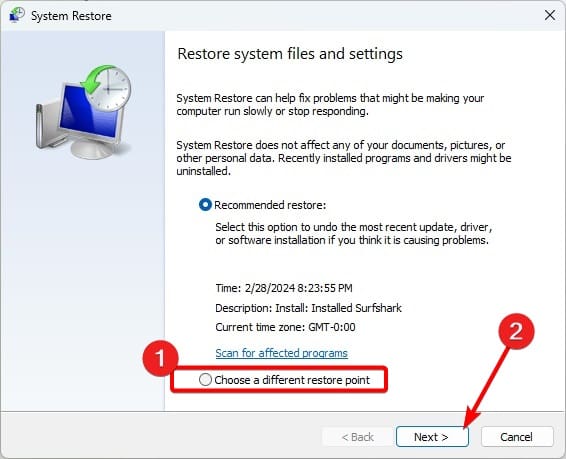
4. Select a restore point and click Next.
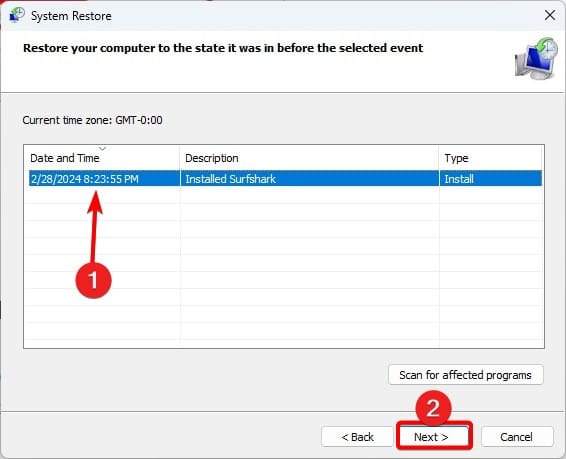
5. Click Finish.
8. Clean Install Windows
We recommend a clean install of Windows as a last resort. While effective, this fix will lead to data loss and may take several minutes or hours to complete.
1. Press Windows + I to launch the Settings app.
2. Click System on the left pane and Recovery on the right.
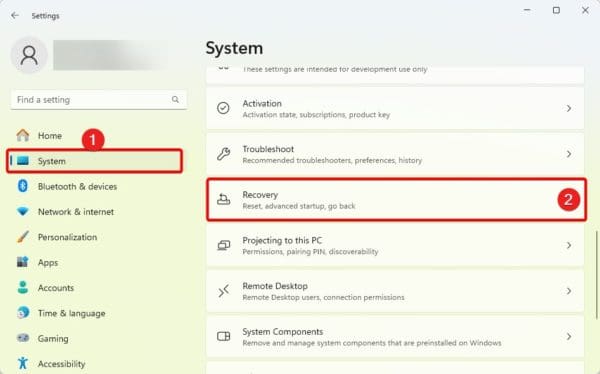
3. Click the Reset this PC button.
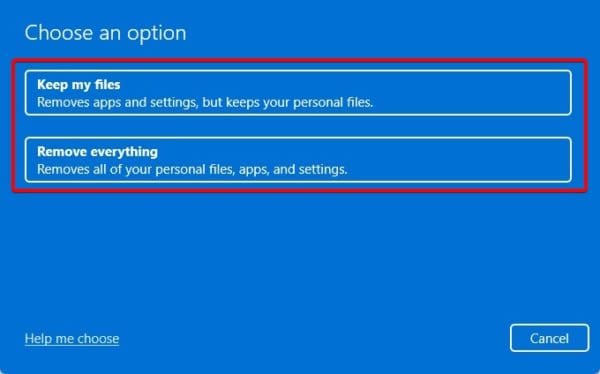
4. Select either Keep my files or Remove everything.
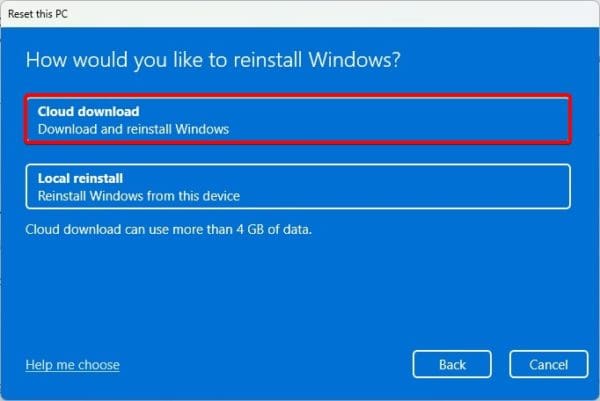
5. Click Cloud Download and follow the wizard to complete the reset.
Accessing the Action Center Again
In this guide, we explored the problem of the action center not opening in Windows 11. The solutions we recommended should help you resolve it seamlessly.
Please leave us a comment below, telling us what solution was most effective.
FAQs
The most common reason for a missing Action Center icon is file corruption. These may be system files or installation files.
Yes. You may use the keyboard shortcuts Windows + A or click the notification icon on the taskbar.