

Did you encounter a Bad Pool Header error on your Windows 11 computer? This often happens after you install a new software or hardware component and may come with the error 0x00000019 code.
A Blue Screen of Death may occasion this error, and this guide will show you the most effective ways to fix this system error.
What is the Bad Pool Header Error?
This is a system error that indicates a memory management problem. When you get the error, it means Windows faces a problem while trying to manage the memory pool for the entire operating system.
This error may be triggered by specific issues relating to particular applications. It may also be caused by corrupted system files, hardware problems, like a failing RAM, or even driver incompatibility.
How Do I Fix a Bad Pool Header Error on Windows 11?
1. Disconnect Peripheral Devices
Disconnecting all connected peripheral devices should be your first call. This is because these devices interact with the computer, and the operating system may face difficulty communicating, especially if faulty or unstable.
Also, if any peripheral devices have outdated drivers or bugs, you may encounter a bad pool header error.
2. Restart the Computer
If the bad pool header error persists after unplugging peripheral devices, you should restart your computer.
When you reboot, the computer forces all processes to shut down. This will be an effective fix since the problematic processes must be turned off.
3. Uninstall Recently Installed Applications
When you encounter the bad pool error BSoD just after you have installed new software, it is most likely that the new addition is unstable and causing the problem.
You should uninstall it to fix the error. However, you may need to boot into Safe Mode first, then follow the steps below.
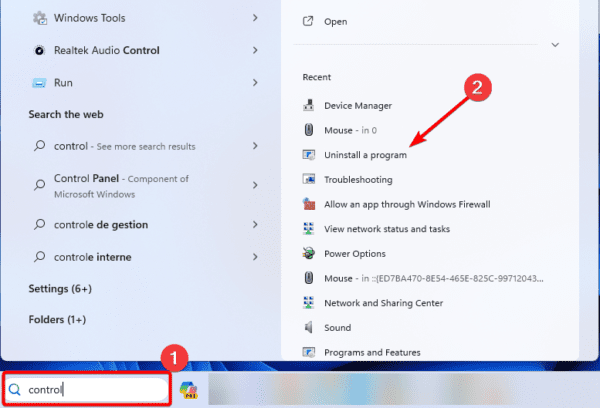
1. Click the magnifying lens on the Taskbar, type control, and click Uninstall a program.
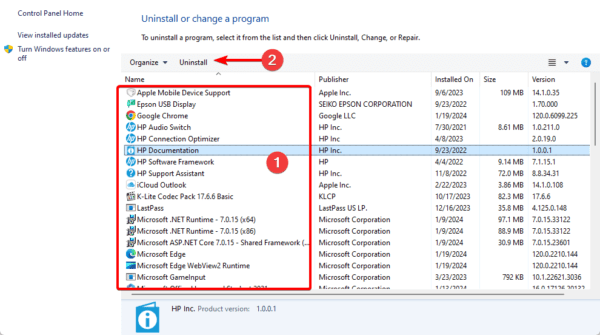
2. Click on the newly installed app and click the Uninstall button.
3. Follow the wizard to complete the process, then restart the computer.
4. Update Windows
When Windows 11 is outdated, it may not interact properly with connected devices and other services. This may lead to the 0x00000019 error code. Simply update the OS following the steps below.
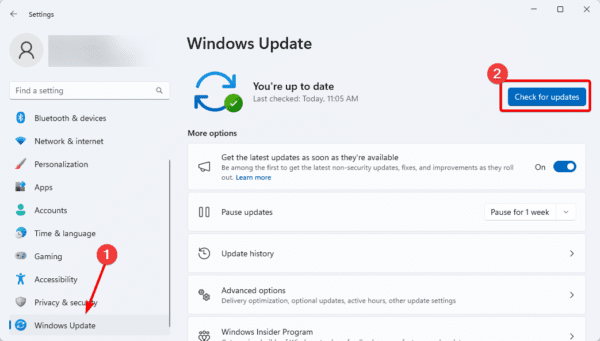
1. Press Windows + I to launch the Settings app.
2. On the bottom of the left pane, click Windows, then on the right pane, click Check for updates.
3. Download and install any updates and restart your computer.
5. Update Drivers
Outdated drivers are one of the more common causes of the bad pool header on Windows 11. You may use driver updater software or update outdated drivers manually by following the steps below.
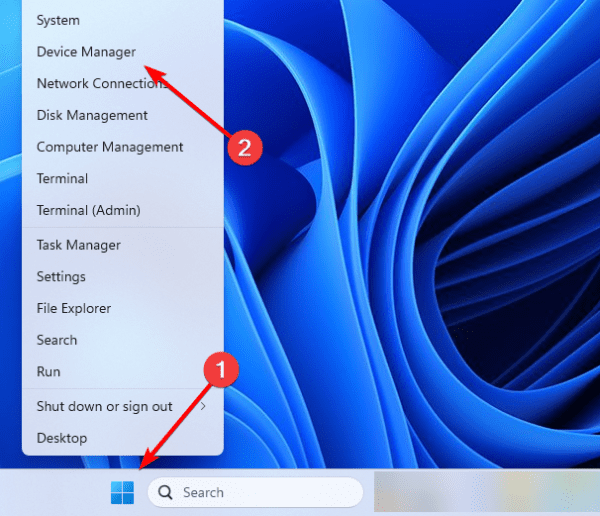
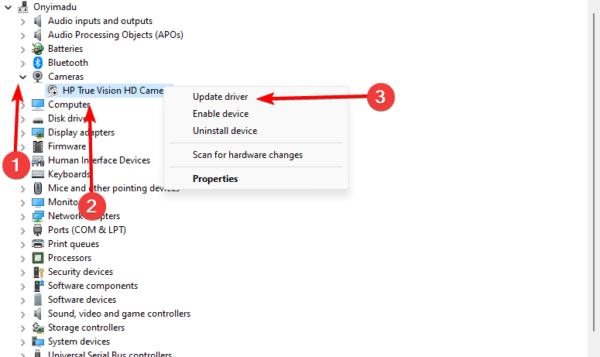
1. Right-click the Start menu and click Device Manager.
2. Expand any category with outdated drivers, right-click the driver, and click Update driver.
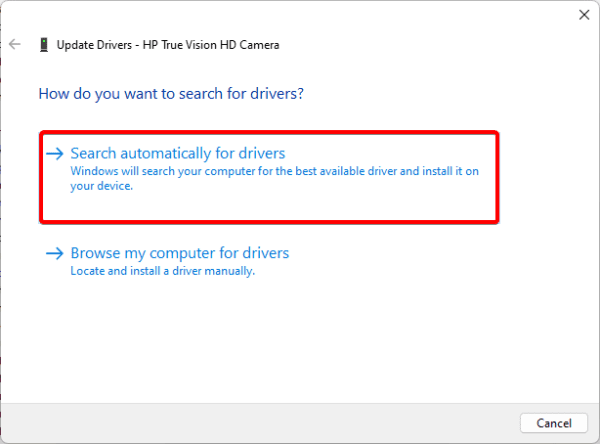
3. Click Search automatically for updates.
6. Fix RAM with the Memory Diagnostics Tool
The Windows memory Diagnostics tool detects issues with hardware components like the RAM. When you have a bad pool header error, you should run this utility and follow its recommendations.
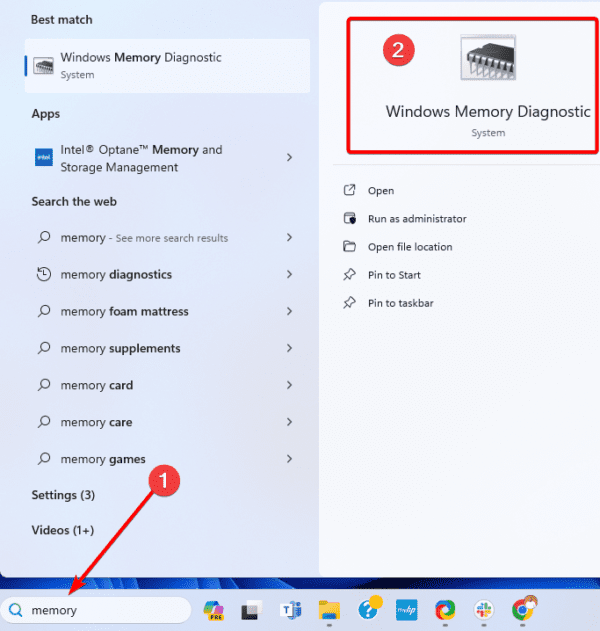
1. Click the Taskbar’s magnifying lens, type memory, and click Windows Memory Diagnostics.
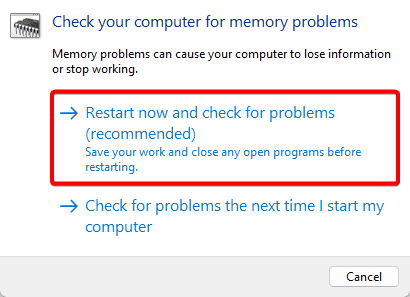
2. Click Restart now and check for problems.
3. Follow any recommendations to fix the problem.
FAQ
The memory allocation mechanism in your OS is called “Pool.” The software known as “Header” ensures the Windows API (application programming interface) is used correctly. The error message BAD POOL HEADER indicates that there are problems with memory management on your computer. Both software and hardware may be the cause of the memory problems.
Both of them are stop errors, and they are related to memory management issues; however, they are errors encountered at different stages, and they are not the same thing.
Recovering From the Bad Pool Header Error in Windows 11
The solutions we have explored in this guide will be your most effective ways of recovering from a bad pool header BSoD on the computer.
For most of the solutions explored, you may have to first boot into safe mode to guarantee the computer is stable while you troubleshoot.