

If you are one of those that like to move your User Profile to a different partition or hard drive then this tip is best suitable for you, especially if you have a SSD as your primary boot disk. One of the many reason why modern browser are so speedy is because they use a large number of cache file to stored on your local hard drive to make access to the most frequent website even faster. Chrome is arguably the fastest in terms of launching and page loading and tab opening. But if you are like me, having your user data moved to a different location (ex. an other hard drive) and have the main program is running on a SSD. Then you are not fully maximize the speed that you gained by running programs off SSD, because when Chrome try to read/write cache files, the OS still interacts with the slow hard drive.
Here is How to Move or Allocate Google Chrome Cache and/or User Data to a Different Location
In my case, I want to move the cache file to SSD. Step 1. Go to Chrome’s Properties menu 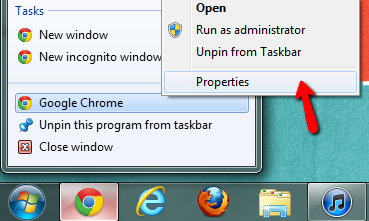 Step 2. Add the following parameters at the end of the target option. Here as an example the new location will be C:\Google\Chrome you can however change to whatever you want.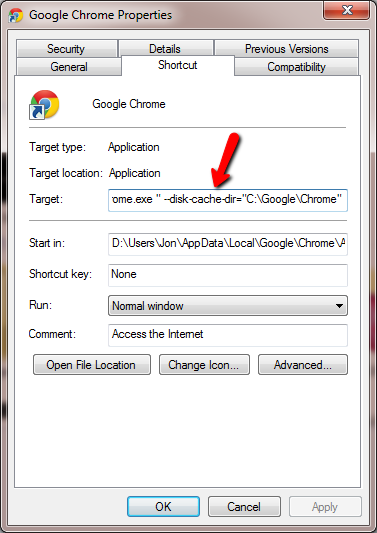
--disk-cache-dir="C:\Google\Chrome" Also in here you can too change the User Data file location by adding the following parameters. --user-data-dir="C:\Google\Chrome" 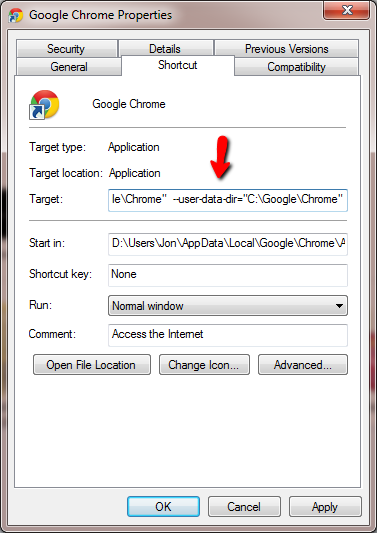 Now close Chrome and restart again, you should see the newly created directory that contains your new cached file.
 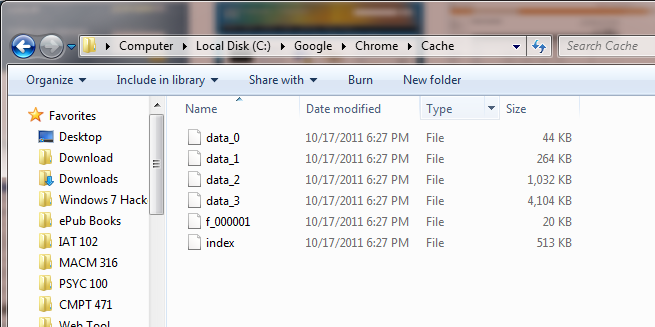 By doing so you have just relocated the cache and user data file in Chrome. This sure improved the speed on my system, give it a try on yours.
this is again a stupid disinformation – placing CACHE files on an expensive SSD is the best way, to reduce the lifetime of your SSD very fast – you should put your cache fiiles into a RAM disk, that is much cheaper AND faster.
With this tip you just lead people to use more ressources – we have only limited ressources on this planet, so please think before writing a tip if it helps in saving ressources – you as a writer have a special responsibility – by spreading better information you can help to reduce our ressources consumption. thanks!
Thanks for the tip, exactly what I was looking for.
As for SSD usage, I’ve been using my intel 128 SSD for over a year and it’s at 99% with an expected lifetime of MANY years. For me actually using the damn thing day to day is worth the few dollars it MIGHT cost me. In all probability I’ll be buying new hardware before it fails anyway. but thanks for the inaccurate comment probably based your own experience alone two years ago.
Ram disks are many many times faster than even an ssd drive.
HOWEVER, you must refill the cache each and every time you restart the computer.
So, for frequently visited sites leave the default cache settings alone – you get faster internet browsing.
Now, if you say are doing research or random browsing to a lot of different sites you might want to use a ram drive.
Note: Fast hard drives write faster than ssd drives, but ssd drives read faster than even the fastest hard drives. Linux has a better memory and storage manager and these problems don’t manifest themselves much at all.
If you just browse and don’t so much else try a linux run from CD version. Everything is cached in ram so you get maximum speed. It also leave no traces of your activities for your significant other to accidentally discover 🙂
There is a hard drive called hyper OS. It is made entirely of RAM sticks with a battery backup so you don’t lose anything.
That can boot XP fully to a usable desktop in 3 seconds flat. Just what do you think it would do for surfing or other disk intensive programs?
About moving the cache – years ago, if you had a desktop computer and an extra hard drive, it made sense to move the cache to the extra drive. You got much better speed that way. It also prevented some viruses from causing problems since it would take a bigger virus to access the other drives/partitions. This would make it easier for A/V programs to catch and remove them.
I use Linux running from an external SSD drive on USB 3.0 and windows from the built in regular drive. While this is not optimal (it should be the other way around), it does work rather well.
I *COULD* move my cache files to the windows drive but that would slow things down a bit I think.
I cannot switch the two due to Microsoft locking all newer computers with UEFI – no dual booting in a traditional way allowed.
OK, here is another suggestion if you do not have or use an SSD drive-
Get a USB 3.0 flash drive. Set your cache and temp files on it, ready boost if desired. You can see an increase in speed over using a regular hard drive alone. Flash drives are between the speed of a hard drive and an SSD drive.
Of course with Linux this is not needed and is an added unnecessary expense.
A lot depends on how you use your computer and what you use it for.
There are many free ramdisk programs out there for windows users. If you want sheer speed and leave little information for others to find, get one and use it.
The only thing faster is cloud computing – but they see everything you do, keep records of everything, don’t tell you who is looking at them or what anyone is doing with them.
Many people have been busted for things put on facebook and similar. So if you choose this route to get speed then beware of he consequences.
Stupidest tip ever… You should NEVER use SSD for your browser cache, because it ruins your drive.
Thank you! Finally found a guide that worked for me