

Application errors are not uncommon on Windows 11. The Exception_Illegal_Instruction is an example typical with gaming applications, but users have recently encountered an Exception_Access_Violation error. The violation error is not restricted to a specific application and may come with the error code 0xc0000005.
There are a couple of variations to this error, and Java applications may trigger some, while others may be related to the ntdll.dll, odbc32.dll files. Users have encountered the Exception Access Violation in Minecraft, WoW, and Overwatch. You should proceed with the solutions we offer below.
1. Run the Hardware Troubleshooter
You may experience the exception_access_violation application error when a peripheral is broken or corrupted. The best way to repair it is by running the built-in Windows hardware troubleshooter. This tool will scan and fix any issues relating to hardware units. Follow the steps below.
Step 1: Launch your Run dialog by pressing Windows + R.
Step 2: Type cmd, then hit Ctrl + Shift + Esc to open the Command prompt with elevated privileges.

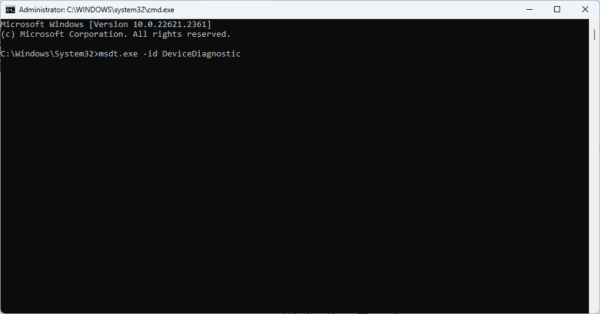
Step 3: Type the script below, hit Enter, and wait for the process to complete.
msdt.exe -id DeviceDiagnostic
2. Add the App to the Data Execution Prevention Exception List
This list contains programs exempted from the DEP security feature on Windows 11. By default, all programs on your computer are DEP enabled. Since DEP may block an application from executing code from data pages, they may run more freely without error when they are added to the exclusion list.
Step 1: Click the magnifying lens for the Taskbar, type system properties, and click About your PC.

Step 2: Click Advanced system settings.

Step 3: Click the Settings button.

Step 4: Click the Data Execution Prevention tab, check Turn on DEP for all programs and services except those I select, then click the Add button.

Step 5: Navigate to the problematic application, then click Open.
Step 6: Finally, click Apply and OK.
3. Scan the Computer for Viruses
Computer viruses are a common cause of application errors. They may corrupt essential app or system files that trigger the exception_access_violation error.
Scanning your computer for malware will fix the application error if the cause is malware. You may use any third-party antivirus or stick to the built-in Windows Security. After the scan, confirm that you no longer have the application error.
4. Create an Options.ini File
If you experience this error while playing games, your best bet may be to create an Options.ini file. This file will provide the game with specific running instructions and will be a valid fix if the game is not compatible with the system’s current hardware or software configuration.
Step 1: Click the Start menu, type Notepad, and click on the Notepad application.
Step 2: Paste the script below in NotePade, then click on File and Save as.
[Options]
Resolution=800x600
HasSeenLogoMovies = yes
AudioLOD = Low
Fullscreen=Off
ShadowQuality=Low
TextureQuality=Low
StaticGameLOD = VeryLow

Step 3: Name the file and add .ini as the extension, then navigate to the game directory and Save it in the same folder.
5. Uninstall and Reinstall the Problematic Software
None of the fixes will work for the exception_access_violation error if the problematic program is corrupted; you must reinstall it using a recently downloaded copy. You must uninstall the old application by following the instructions below before downloading and installing the new one.
Step 1: Launch the Run dialog by pressing Windows + R.
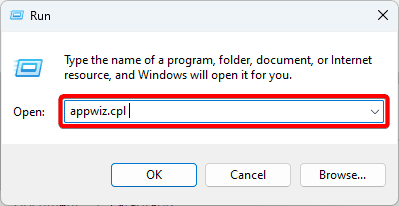
Step 2: Type appwiz.cpl and hit Enter.
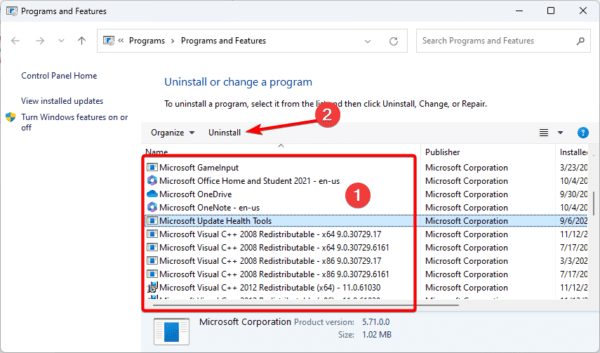
Step 3: Click the application from the app list and click Uninstall.
Final Thoughts
Exception_access_violation is an application error that a few users may encounter. It is not a serious problem, and as soon as you apply the above fixes, you should be back to running your apps or games without problems.
That will be all for this guide. Please let us know in the comment section which of the solutions was effective for you.