

Fatal errors on Windows would often cause the computer to crash. They may happen at different times, and the fatal error c0000022 is more likely to happen during Windows updates or installations. It will stop your computer from booting normally.
Since many users have encountered the problem, we researched it. This guide will bring you all the fixes for this Blue Screen of Death error.
What Causes the Windows Fatal Error c0000022?
The major causes of Windows computers include the following:
- Corrupted or missing system files
- Faulty Windows updates
- Driver conflicts
- Hardware issues like faulty RAM or hard drives
You may use any of the solutions below to fix it but we suggest you first boot in Safe mode to guarantee the computer is stable before going into the fixes.
1. Roll Back Windows Update
Some users have experienced the fatal error c0000022 just after updating or during an operating system update. If you fall under this category, it may point to bugs in the update, and you will have to roll back or uninstall that update.
1. Open the Settings app by pressing Windows + I.
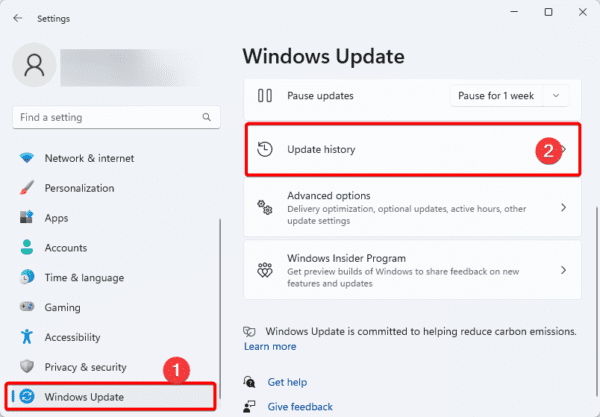
2. Click Windows Update on the bottom left pane, then click Update History on the right.
3. Scroll down and click Uninstall updates.
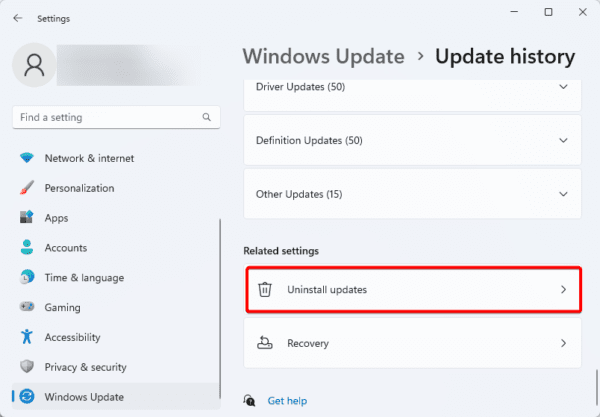
4. Click Uninstall for your latest update.
2. Repair Registry Corruption
The Windows registry is a centralized, hierarchical database or system and application configuration. When it is corrupted, you will experience a lot of process conflicts that may trigger the fatal error c0000022. You must repair registry corruption by following the steps below.
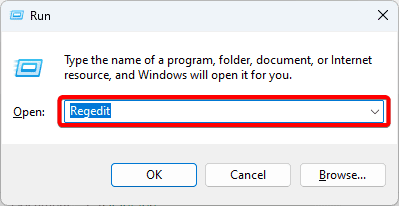
1. Press Windows + R to launch the Windows Run dialog, then type regedit and hit enter to open the Registry editor.
2. Navigate to the path below.
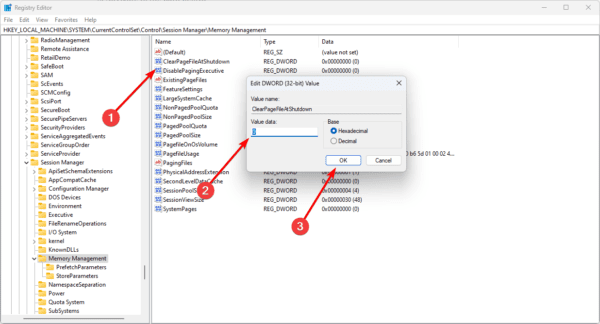
HKEY_LOCAL_MACHINE\SYSTEM\CurrentControlSet\Control\Session Manager\Memory Management

3. On the right pane, double-click ClearPageFileAtShutdown, set the Value data to 1, and click OK.
4. Restart your computer for the changes to take effect.
3. Fix Corruption with the DISM and SCF Scans
Image and system file corruption are prominent reasons for the fatal error c0000022. Luckily, on Windows devices, two command line utilities effectively fix these issues. They are the DISM and the SFC scans. Here is how you run them.
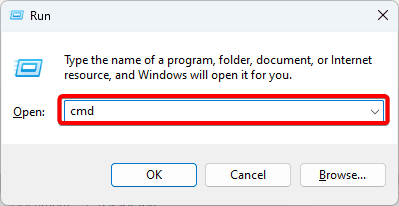
1. Press Windows + R to open the Run dialog.
2. Type cmd in the text field and hit Ctrl + Shift + Enter to launch an elevated Command Prompt.
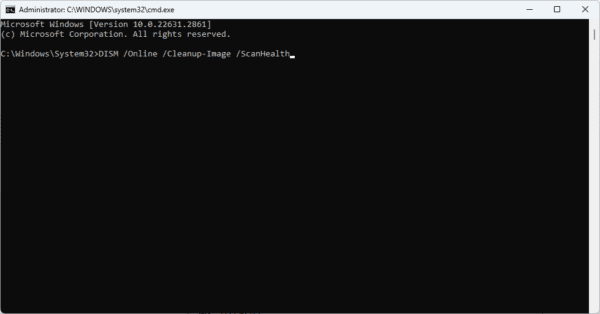
3. Type the command below and hit Enter to scan for Image errors.
DISM /Online /Cleanup-Image /ScanHealth
4. Type the command below and hit Enter to fix all discovered image errors.
DISM /Online /Cleanup-Image /RestoreHealth
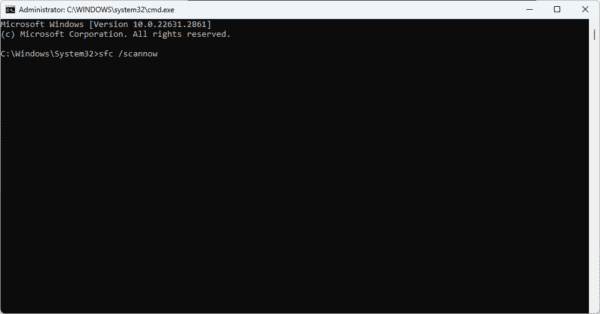
5. Rund the command below to fix corrupted system files on the computer.
sfc /scannow
4. Run the System Restore Tool
If none of the solutions above have worked, you should revert the computer to an earlier state when it worked without the c0000022 fatal error. You may use the built-in system restore tool to do this.
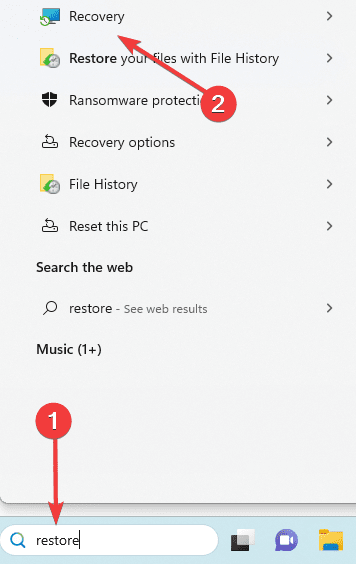
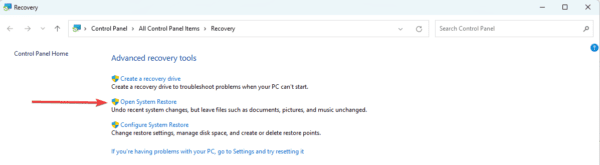
1. Type restore on Windows Search and select the Recovery option.
2. Click the Open System Restore option on the Control Panel.
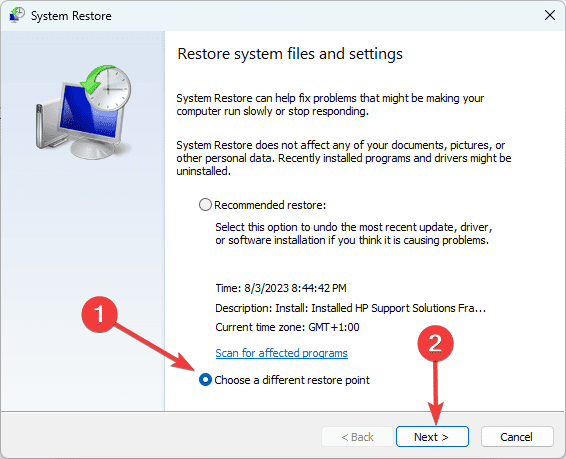
3. Select Choose a different restore point and click the Next button.
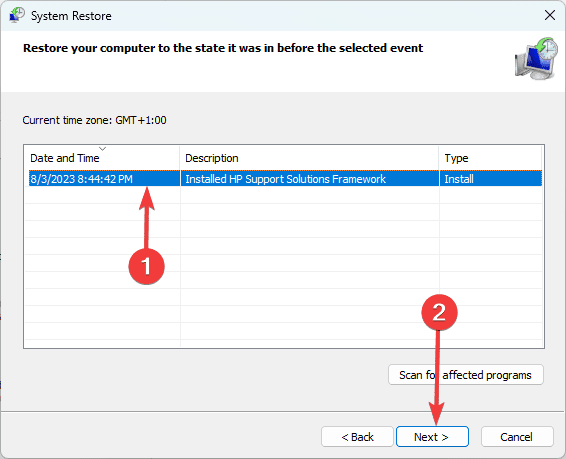
4. Select a different restore point from the available options and click Next.
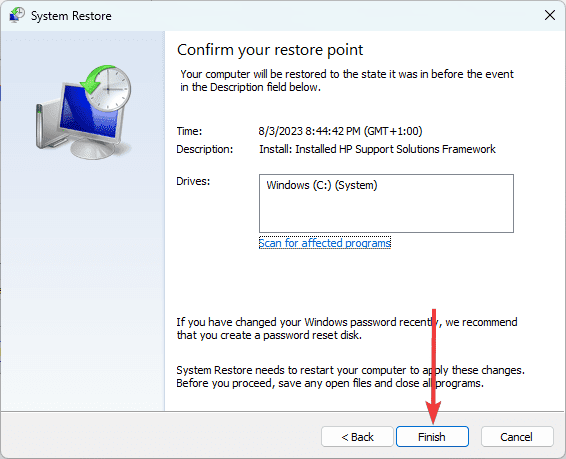
5. Lastly, click the Finish button. The process will begin, and your computer may restart as the restore runs.
No More Fatal Errors on Windows
The c0000022 fatal error causes a lot of panic among Windows users; however, the solutions are not really complex. You may get your computer running smoothly and perfectly again with a few tweaks.