

UEFI is nothing new, but it is first time introduced in Windows 8. If you want to install a clean copy of Windows 8 or Windows 8.1 on a UEFI-enabled computer, you will need a UEFI bootable USB flash drive to start with. This is a tutorial to show you how to make such flash drive with and without the help of 3rd party tool.
Option 1: the manual process
1. Connect the USB flash drive to your computer, of course.
2. Open Command Prompt with Admin rights. Press Win+X and choose Command Prompt (Admin) from the list.
3. Type diskpart to start the diskpart built-in utility. And type list disk and make a note of the disk # for the USB drive.
4. Type in the following commands to properly format the flash drive. Replace # with the actual # you got from step 3 above.
select disk #
clean
create partition primary
format fs=fat32 quick
active
assign
exit
5. Now close the Command Prompt window, and open File Explorer, browser through to the location where saves the Windows 8 installation ISO image file.
6. Mount ISO file by right-clicking the ISO file and choosing Mount. If you don’t see Mount command from the context menu, go to Open With → Windows Explorer instead.
7. Select everything in the ISO file, and copy them to the formatted USB flash drive you prepared earlier (Figure 1).
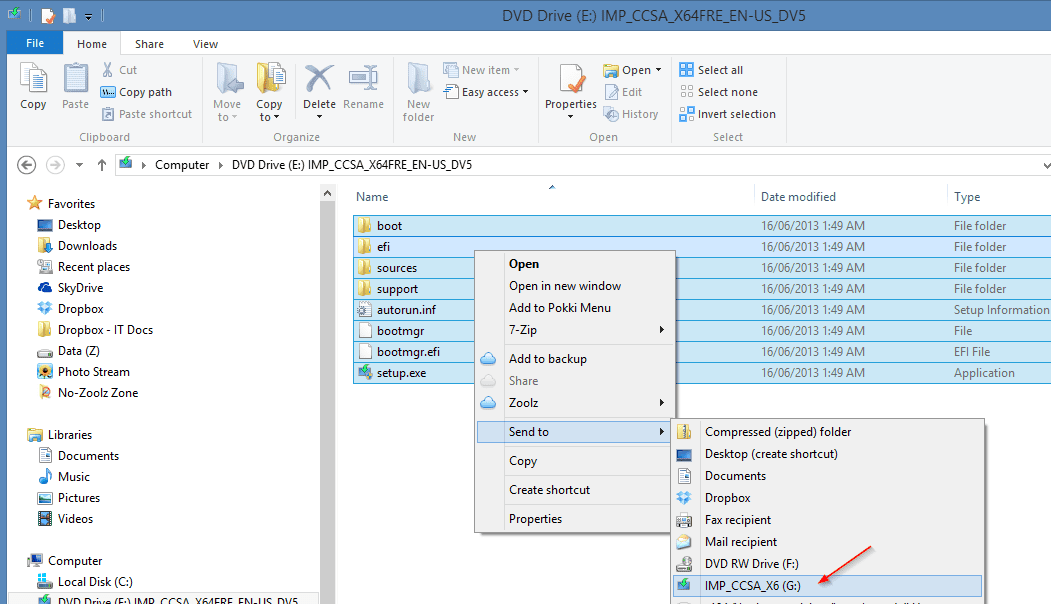
8. One more extra step if you are making a 64-bit version of the installation. You will need to copy a file called bootmgfw.efi from inside install.wim file at sources folder to the efi\boot folder on USB flash drive and rename it to bootx64.efi. Sounds tedious, isn’t it? So let’s put an easy way, you can directly download this file (direct download link) and copy to your efi\boot folder.
That’s it. Now, you can boot off from this USB flash drive and start a fresh installation. If, for some reasons, it doesn’t work, move to:
Option 2: a tool comes to rescue
Rufus, one of the 4 tools we mentioned to build bootable USB flash drive, is a small utility that creates bootable USB flash drive for Windows 7 or 8. What makes Rufus different is that it offers three different partition scheme to target the system type, such as those UEFI-based computers. You can make a bootable drive that can directly boot off on a UEFI computer without turning the Secure Boot off. It’s free and portable.
To make a UEFI bootable USB drive,
1. Plug in your USB flash drive, of course.
2. Launch the program. Since it’s portable, you can simply just download and run it.
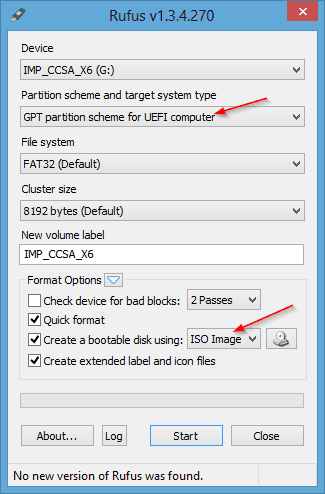
3. Check the option “Create a bootable disk using: ISO Image,” and click the icon next to it to pick up the ISO image file.
4. Select “GPT partition scheme for UEFI computer.”
Before you click Start button, check to make sure the settings are selected to similar like Figure 2.
5. Click Start, and sit back.
That’s it. Hopefully, it will help you out this UEFI mystery.
Nice tutorial. Thanks!
Error 509 dropbox 🙁
right…sorry for the broken link. The dropbox public share link is down because it’s got too many traffic.
I’ve now updated the link.
Well, I tried the manual process but the install setup didn’t start and I got a 0x000000d error, the file “EFI/MICROSOFT/BOOT/BCD file can’t be readed… (I didn’t delete that boot directory, the BCD file is still there too) but if I load the install setup in Legacy/MBR mode it works very well….
I will try now the Rufus version…
Thanks.
i was looking for solution all night, kept telling me i can not install on the hdd, using usb drive, big thanks to you!
Now it’s working, installing windows 10, don’t have to do step 8.
thank u very much sir….
i tried the procedure, but system shows no bootable drive found. is there any GPT partation scheme for Legacy bios mode also ?
Have you looked at the BIOS to boot from the USB?
selecting option 1 getting message selected disk is of gpt partition type window cannot be installed, and using second option & file type fat32 usb not detected & if using file type NTFS getting message efi\boot\bootx64.efi is unsupported.
Same here gtp won’t work and there is no boot options shown on the boot manager tab
GPT Booting is only supported for 64-bit editions on UEFI-based systems. You will need a system that supports UEFI to start with.
i was so close to throwing my laptop outta window !! thanks to you it didnt happen !
Nice and clear explanation. Thank you.
Kent Chen Hi, look at the process you are showing, but the problem I have is that I delete the disk with diskpart, update the BIOS from 2.5 to 3.0, but it does not allow booting from the usb to be able to create the partition and install the Windows because it does not detect or show it. This is an ASUS T100TAF TRANSFORMER. Hope you can help me, thanks in advance. William Santana [email protected]
Sorry but I use a translator to communicate with you. Greetings.
I believe the USB wasn’t formatted properly for secure boot. But you can still use choose legacy USB boot from the boot option to boot and find the USB.
Hi
what can do with large windows image that can not copied in fat32 system ?
thanks
Boot Up Any USB Flash Drive With Rufus
https://www.youtube.com/watch?v=jgJT1FY3Sc8
Nice!!!!!!! You saved me i had big problem i had tried rufus i tried windows tool for usb and didn’t work either. Thank you again
I did all the steps right, usb is visible in UEFI mode, but boot does not begin. Is is somewhat related to windows 10 license, or not?
The Secure boot may be disabled in BIOS?
brother in bios pick usb on top of UEFI boot order
still its not working bro.. 🙁
Let’s change the new type of flash drive, I recommend you to use Kington
Work for me option 1. Thanks a lot
thanks dear you made my day
I tried to make with rufus a gpt uefi usb for windows 10 and my lap could not boot it, didnt recodnize it afther usb selection in quick boot . I maked a manual usb uefi using this method and it worked just great.
Thanks a lot
is it important to make a iso file
Worked Perfectly. Thank you for the post
Sir,
When I followed option to create the bootable usb drive, I found —-
1.) there is already a file bootx64.efi inside the folder efi/boot. my win10 iso file is recently downloaded from ms website.
do I need to replace it by the file provided by your download link
If there is one already there, you don’t need to overwrite it.
Hi guys I did everything like u said and hit start then message pop up when using uefi target only EFI-bootable iso image ate supported
same problem
This works for me.
CLS
Get-Disk
$diskNumber = Read-Host “`r`nSelect which disk is the USB Drive you would like to put the image on?”
$disk = Get-Disk $diskNumber
# Clean drive.
$disk | Clear-Disk -RemoveData
# Create FAT32 partition as bootable
New-Partition -DiskNumber $disk.Number -Size 1GB -IsActive -DriveLetter Q | Format-Volume -FileSystem FAT32 -NewFileSystemLabel USB-FAT32 | Out-Null
# Create NTFS volume for the large Install.wim file
New-Partition -DiskNumber $disk.Number -UseMaximumSize -DriveLetter R | Format-Volume -FileSystem NTFS -NewFileSystemLabel USB-NTFS | Out-Null
Write-Host -ForegroundColor Green “`r`nIf you haven’t mounted the ISO, do so now by right clicking the image file and selecting mount”
[char]$imageDrive = Read-Host “What is the drive letter of the mounted ISO?”
$command = “xcopy {0}:\boot\*.* Q:\boot\ /s /y /f” -f $imageDrive
Invoke-Expression -Command $command
$command = “xcopy {0}:\efi\*.* Q:\efi\ /s /y /f” -f $imageDrive
Invoke-Expression -Command $command
$command = “xcopy {0}:\support\*.* Q:\support\ /s /y /f” -f $imageDrive
Invoke-Expression -Command $command
$command = “xcopy {0}:\*.* Q:\ /y /f” -f $imageDrive
Invoke-Expression -Command $command
$command = “xcopy {0}:\sources\boot.wim Q:\sources\ /y /f” -f $imageDrive
Invoke-Expression -Command $command
# Copy over the install.wim image file
mkdir R:\sources | Out-Null
$command = “xcopy {0}:\sources\* R:\sources\ /s /y /f” -f $imageDrive
Invoke-Expression -Command $command
sleep 10
$eicfgFile = “R:\sources\ei.cfg”
New-Item -Path $eicfgFile -ItemType File | Out-Null
Add-Content -Value “[CHANNEL]” -Path $eicfgFile
Add-Content -Value “retail” -Path $eicfgFile
thats great bro … its working
Not real
Comment:I did every step through a command window it failed and also used a Rufus program it needs only efi ISO images!
how can I create an efi ISO image?
can i do this but witha windos 7 version? if not, whats the reasons? thank you.
Yes, you can.
Please tell me how to make window 7 bootable pendrive with uefi