

When your Windows 11 Device Manager keeps refreshing, it often means a particular device is connecting and disconnecting. This may be because there is a problem with this specific device. However, it could mean more than that.
In some cases, there could be conflicting software or devices or even a more profound case of malware infection or system file corruption. We show you how to address it in this guide.
1. Disconnect Peripherals
Your best bet is to disconnect all connected peripheral devices. This should immediately fix the problem; however, you may need to troubleshoot further to know which of the devices triggered the problem.
So, connect the devices one after the other until you can pinpoint the problematic one. You may then change it or leave it disconnected.
2. Disable Problematic Device
The step above shows how you may manually find the problematic I/O device. However, you may take a more automated approach by using a tool.
You may download and install the USB Log View tool. This tool will run in the background and give you a total record of all the connected USB devices on your computer. It shows you all the log times, and you may easily use it to figure out why Windows 11 Device Manager Keeps Refreshing.
3. Run SFC Scan
An SFC scan is very efficient in finding corrupted or bad system files. It scans your computer for these files and fixes or replaces them. You may run this scan using the following steps.
1. Press Windows + R to open your Run dialog, then type cmd and hit the Enter key.
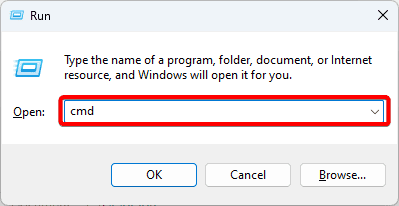
2. In the computer, input the command below, then follow the on-screen instructions to complete the scan.
sfc /scannow
3. Restart your computer.
4. Disable the Error Reporting Services
the Error Reporting Service is in charge of collecting errors on your computer and sending them to Microsoft. There are rare situations when it sends device errors that conflict with the Device manager, causing the refreshing problem.
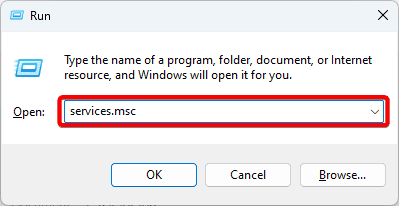
1. Press Windows + R to open your Run dialog, then type services.msc and hit Enter.
2. Right-click on Windows Error Reporting Service and click Stop if it is not greyed out.
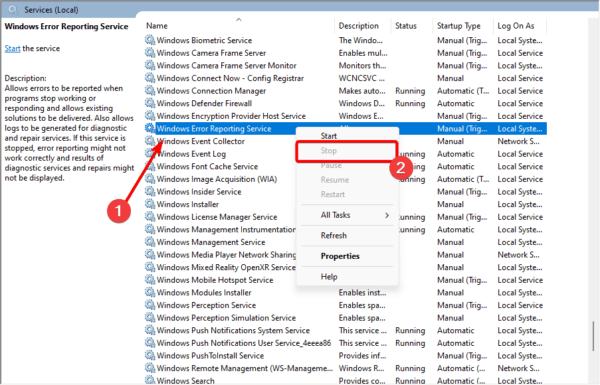
3. Repeat the same process for the Problems Report Control Panel Support service.
5. Run A Virus Scan
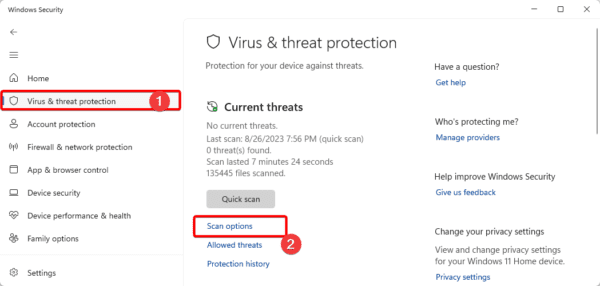
Virus infection often causes the computer to malfunction. When the Device Manager keeps refreshing in Windows 11, it is often a result of a virus, and a proper scan should fix it. You may use a reliable third-party antivirus or the built-in Windows Security shown below.
1. Type Security in the Taskbar’s search and click Windows Security.
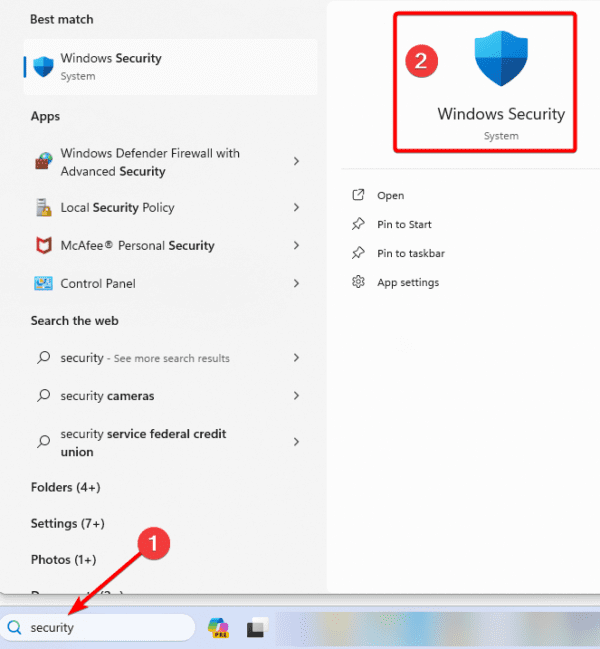
2. Click Virus & threat protection on the right pane, then click Scan Option on the left.
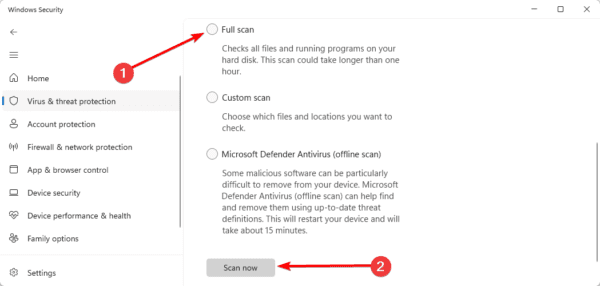
3. Click Full scan, then click Scan now.
5. Clean Boot the Computer
Clean booting your computer is a great way to eliminate conflicts caused by applications or drivers. When you clan boot the computer, it will start without any third-party services, and this would be effective if the Windows 11 Device Manager keeps refreshing.
FAQ on Windows 11 Device Manager Keeps Refreshing
1. Why does my Device Manager keep refreshing in Windows 11?
Driver conflicts, outdated drivers, or system instability are the most common causes for the constant refreshing of the Device Manager.
2. Can the specific device causing the refresh loop be identified?
Yes, you may observe the Device Manager and check for the flickering section.
Moving Ahead
As a best practice, keep your computer constantly updated. It reduces the chance of conflicts leading to the Device Manager problem. However, you should be able to fix it with the solutions we explored in this guide.